Returns Without a Receipt
If the customer has no receipt, you have to find the original sale yourself. How you do that depends on whether they’re a Rewards member. Check Returns first to decide whether we can take the item back at all.
Rewards member, no receipt
Section titled “Rewards member, no receipt”-
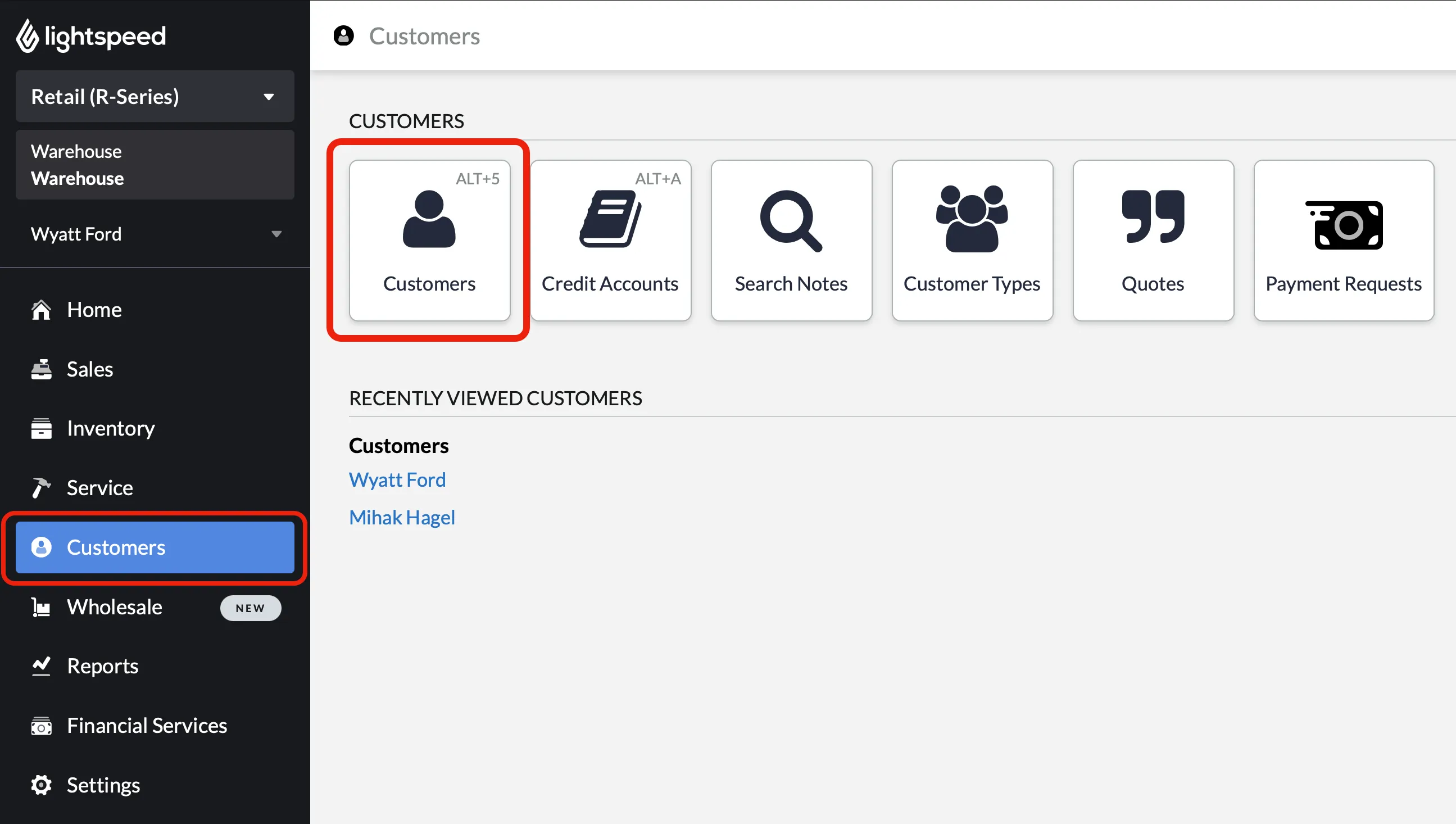
From the sidebar menu, click Customers, then the Customers button.
-
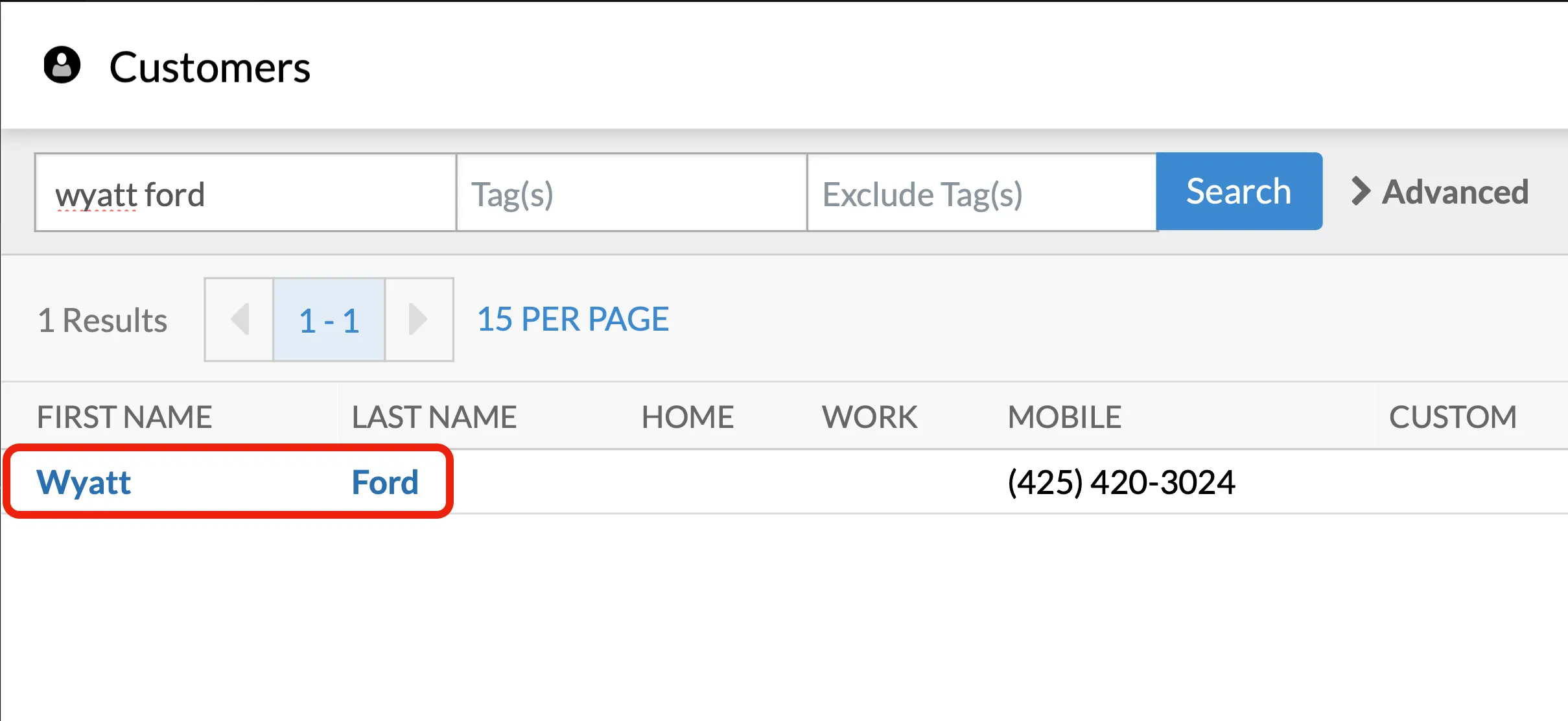
Search for a customer in the Customer input box via name, phone number, or email.

-
Find the customer, then click on their name in the list.
-
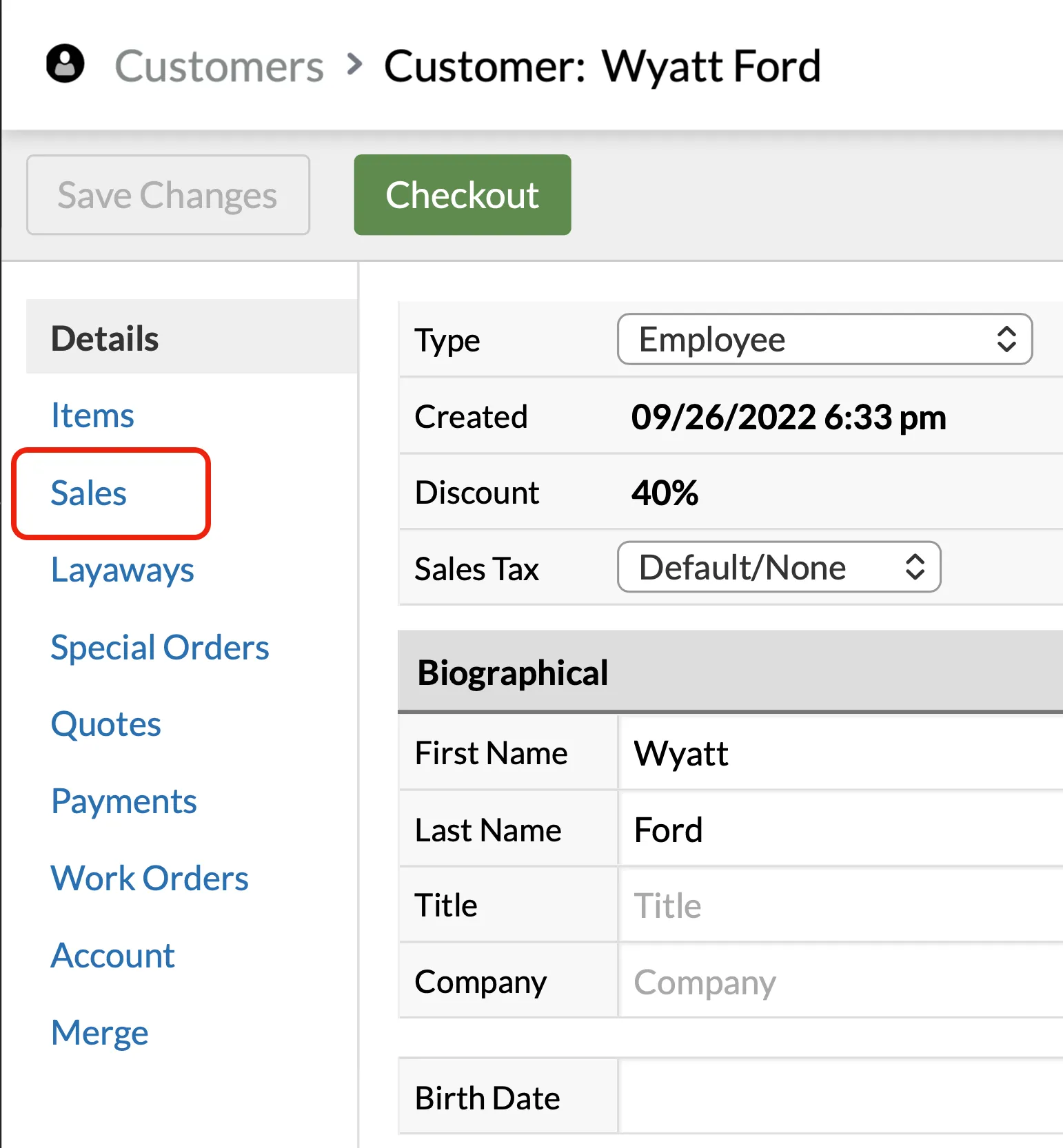
Click the Sales tab on the left.
-
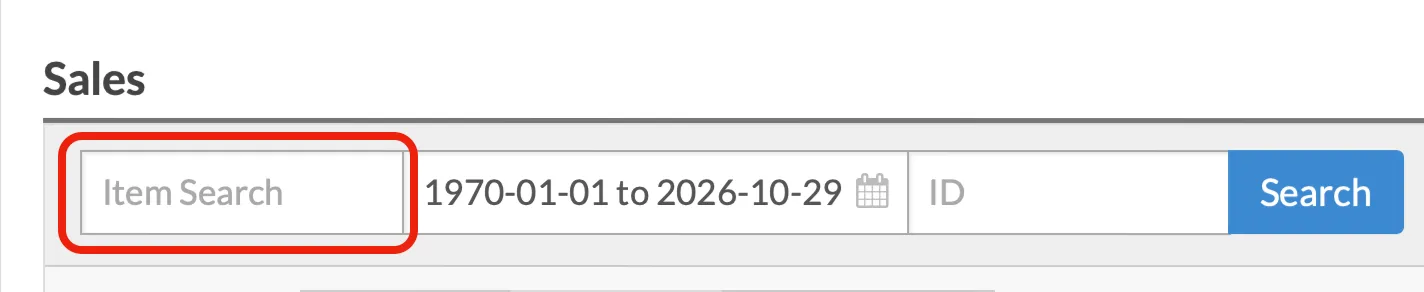
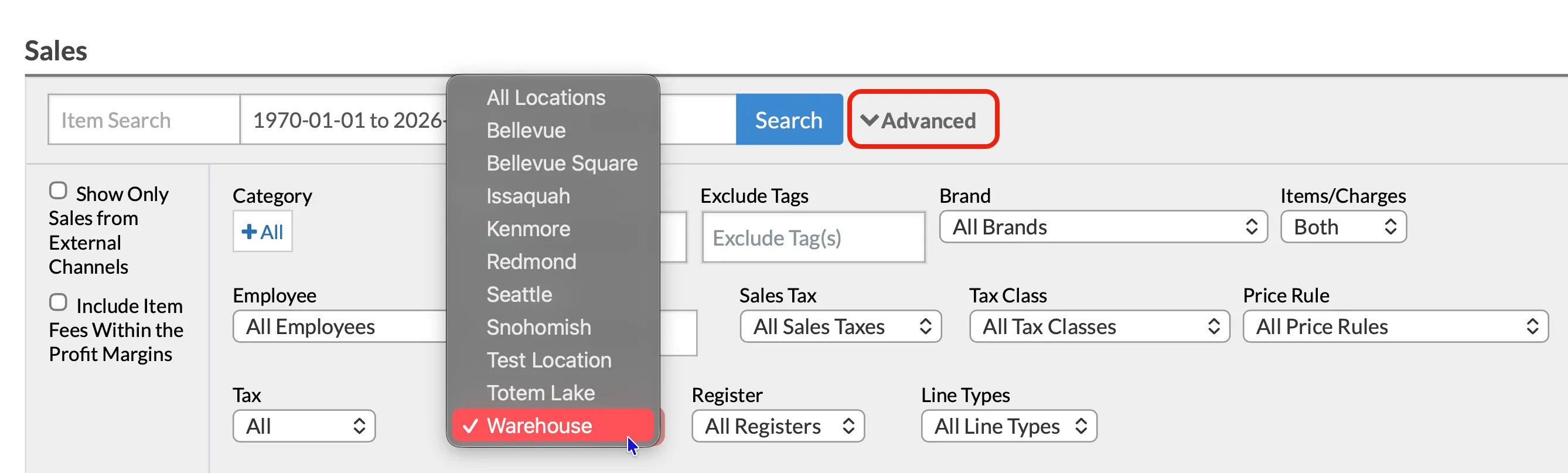
Look through the list of sales. You can use the Item Search field to narrow it down. You may need to change the Location to All Locations if the purchase was made at a different location.
-
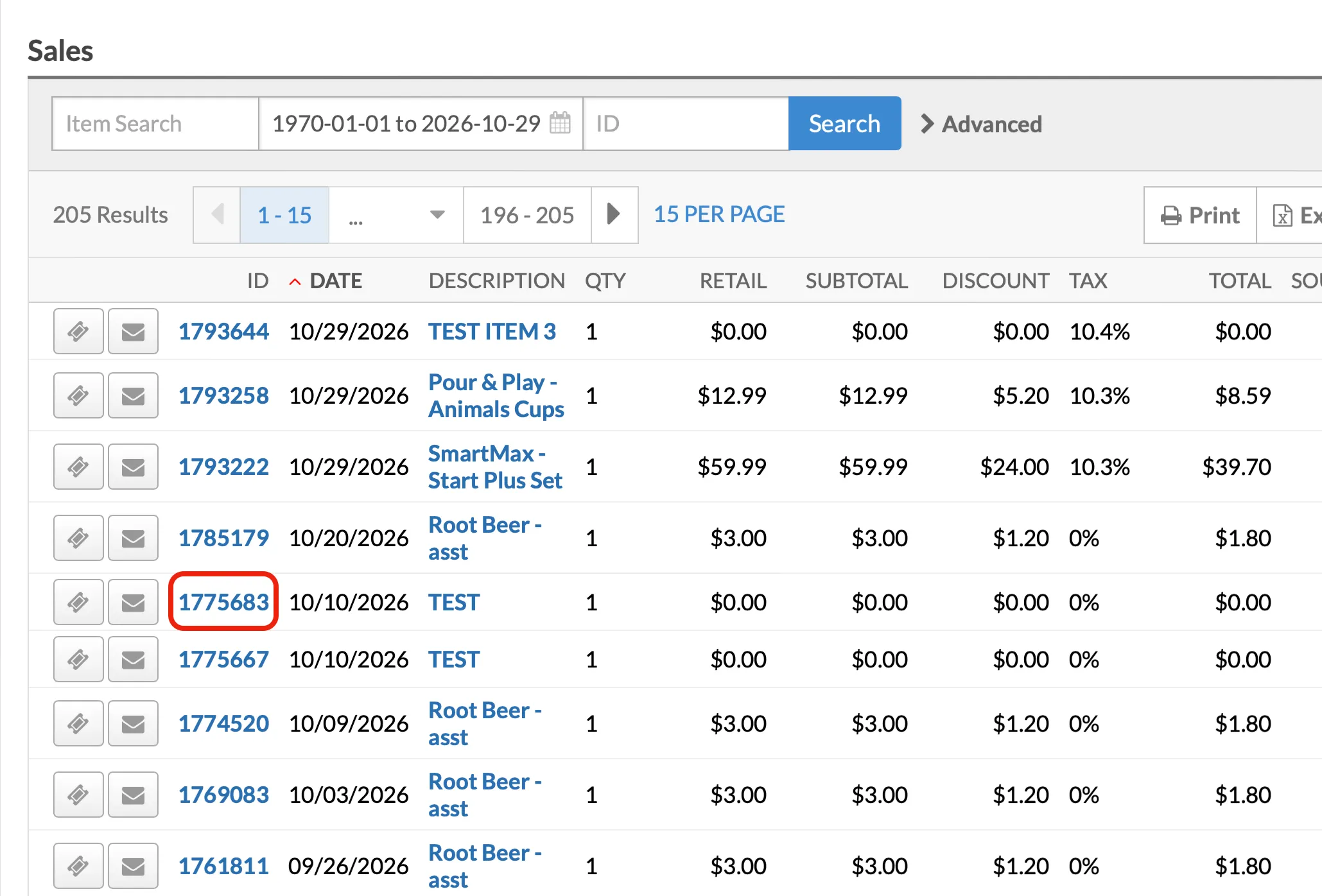
Click a Sale ID in the ID column to open up the sale.
-
Click the Refund button at the top of the screen. You can also conveniently print a Sales Receipt or Gift Receipt from this screen.

-
Continue with the refund at Complete the refund.
Not a member, no receipt
Section titled “Not a member, no receipt”If the customer isn’t a Rewards member, there’s no account to search, so find the original sale in the Lines report.
-
From the main menu, click Reports, then Lines.
-
Search for the customer’s item. Scan its price tag into the Item Search field.
-
If you can’t find the item or the original sale, narrow the results by asking simple questions. For example, when was it purchased? Choose a specific date or a date range in the Date field.
-
In the results, click the Sale ID that matches the item to open the sale.
-
Click the Refund button at the top of the screen. The items they originally purchased appear.
-
Continue with the refund at Complete the refund.