Logging in to Inventory Assistant
Inventory Assistant lets you view deliveries, track custom coupon usage, view purchase orders, and more.
There are two ways to sign in:
- Email and password: if you have your own account and password.
- Magic Login: a one-time code is sent to you in Slack, so there’s no password to remember. You can request it by your own email (the User route) or by selecting your store (the Store route).
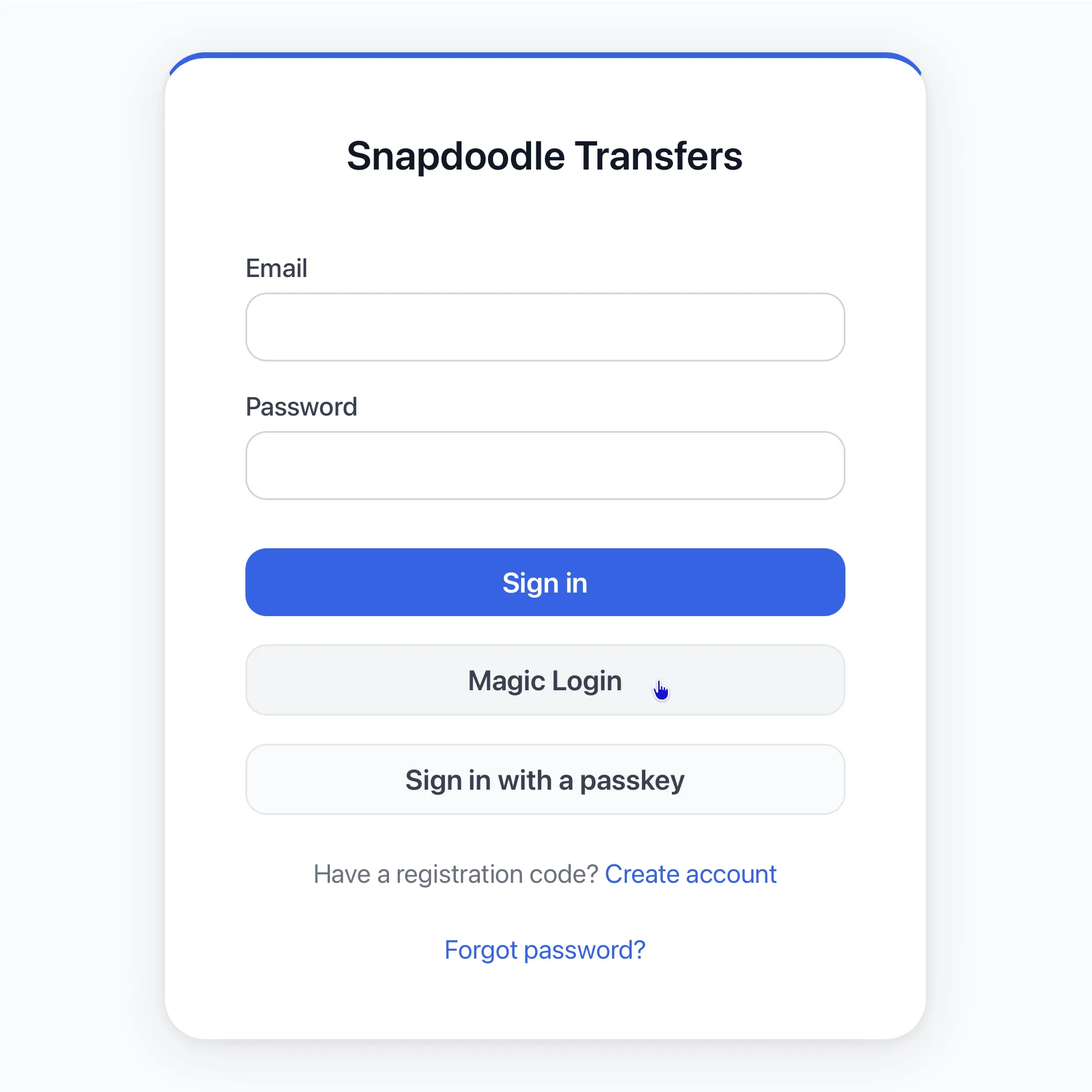
Open the login page
Section titled “Open the login page”In your browser, go to inventory.snapdoodletoys.com.
Email and password
Section titled “Email and password”- Enter your email in the Email field and your password in the Password field.
- Click Sign in.
If you’ve forgotten your password, click Forgot password? below the sign-in button.
Magic Login
Section titled “Magic Login”Magic Login sends a one-time code to you in Slack. Start by clicking the Magic Login button on the login page, then follow the route that fits you.
User route
Section titled “User route”Use this if you have your own account.
- Enter your email.
- Click Get Code.
- Continue to Enter your code.
Store route
Section titled “Store route”Use this to sign in as your store.
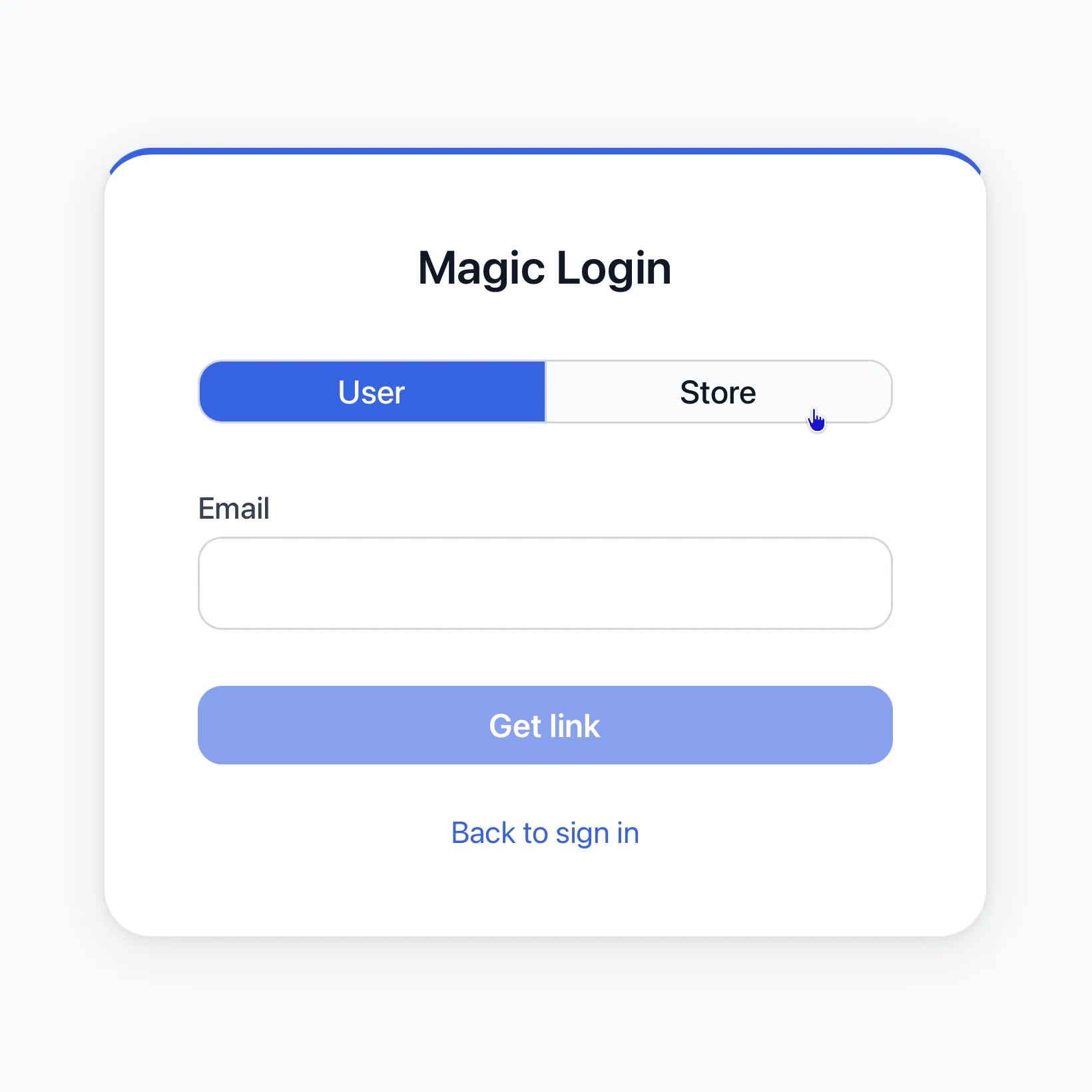
- Click Store to change the login route.
- Select your store location from the dropdown.
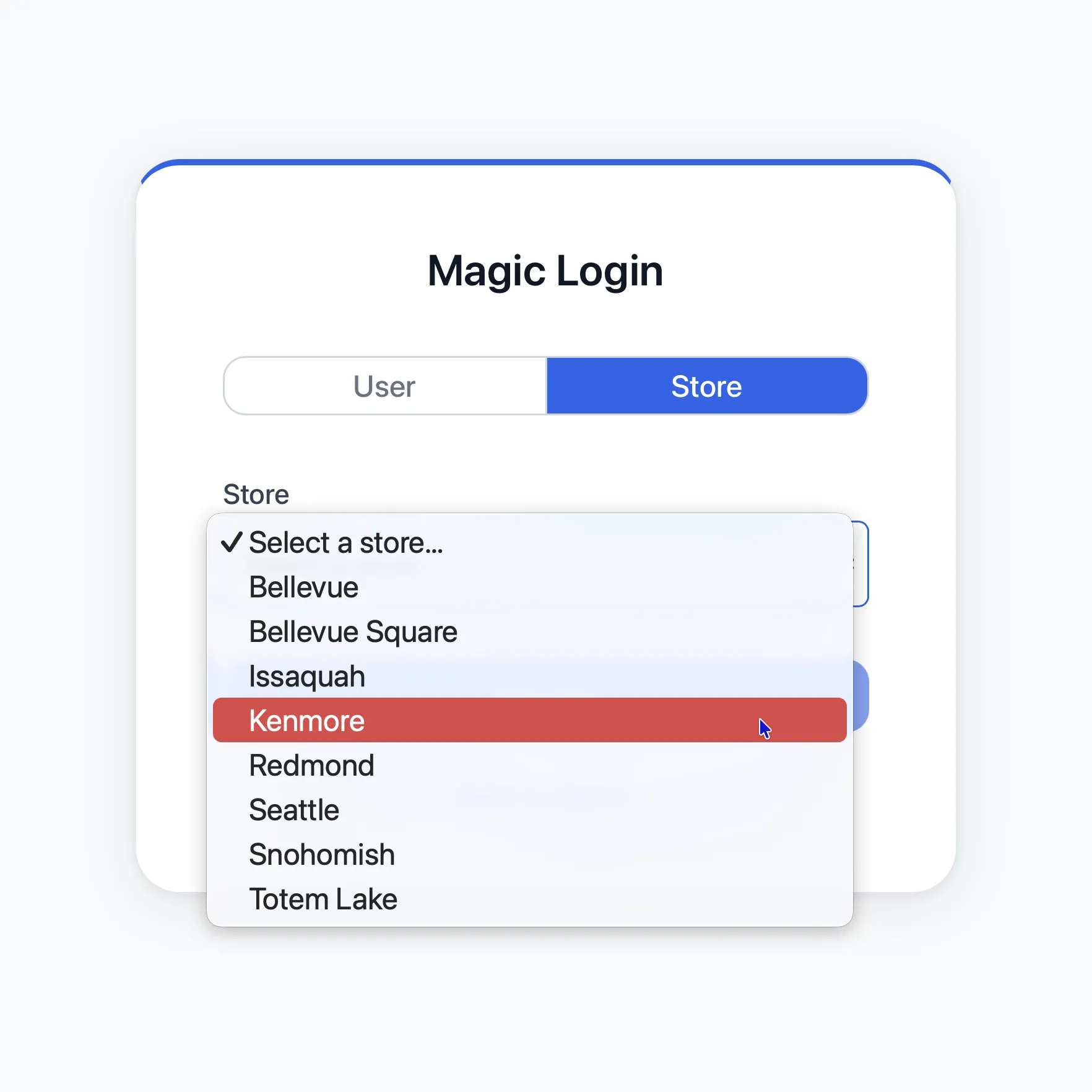
- Click Get Code.
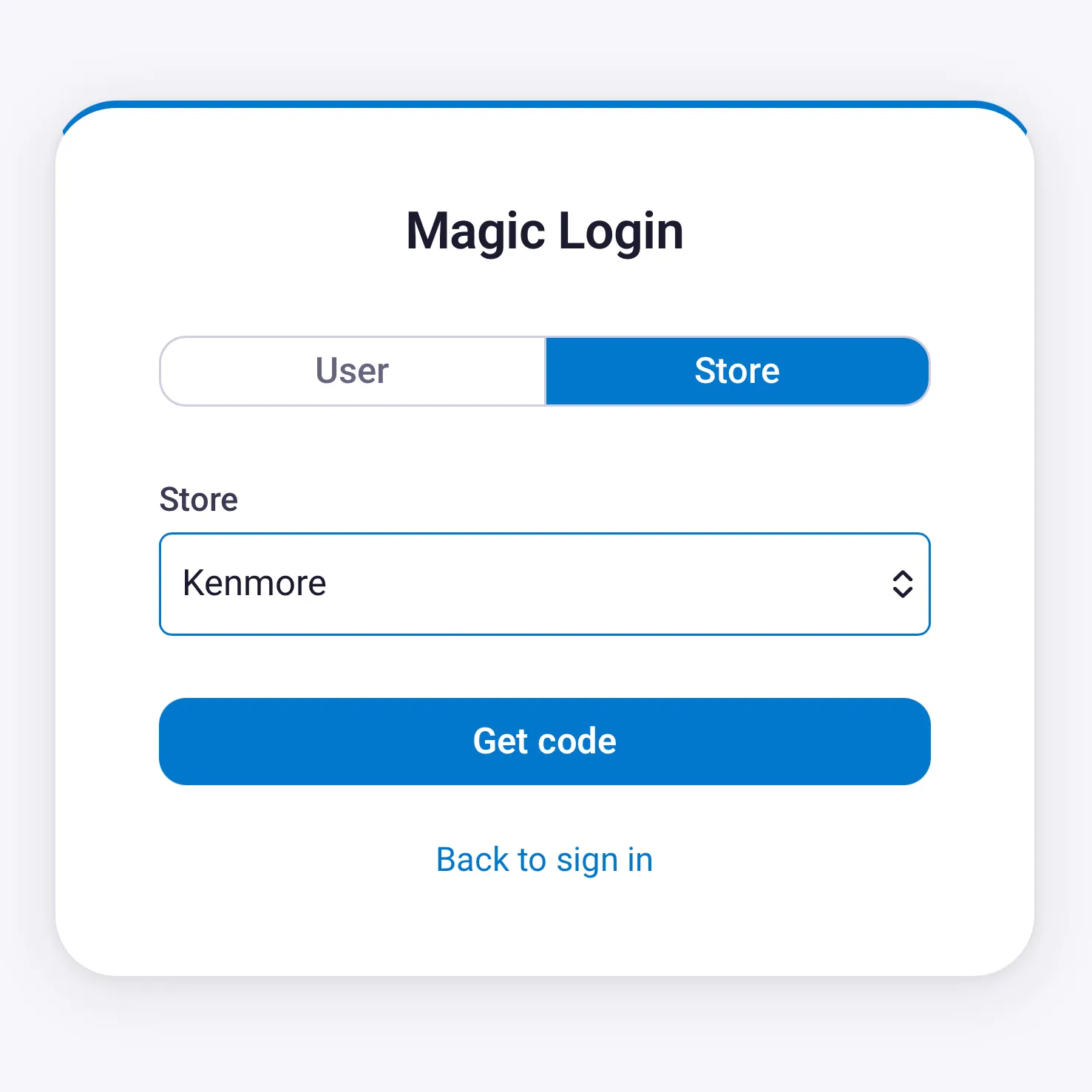
- Continue to Enter your code.
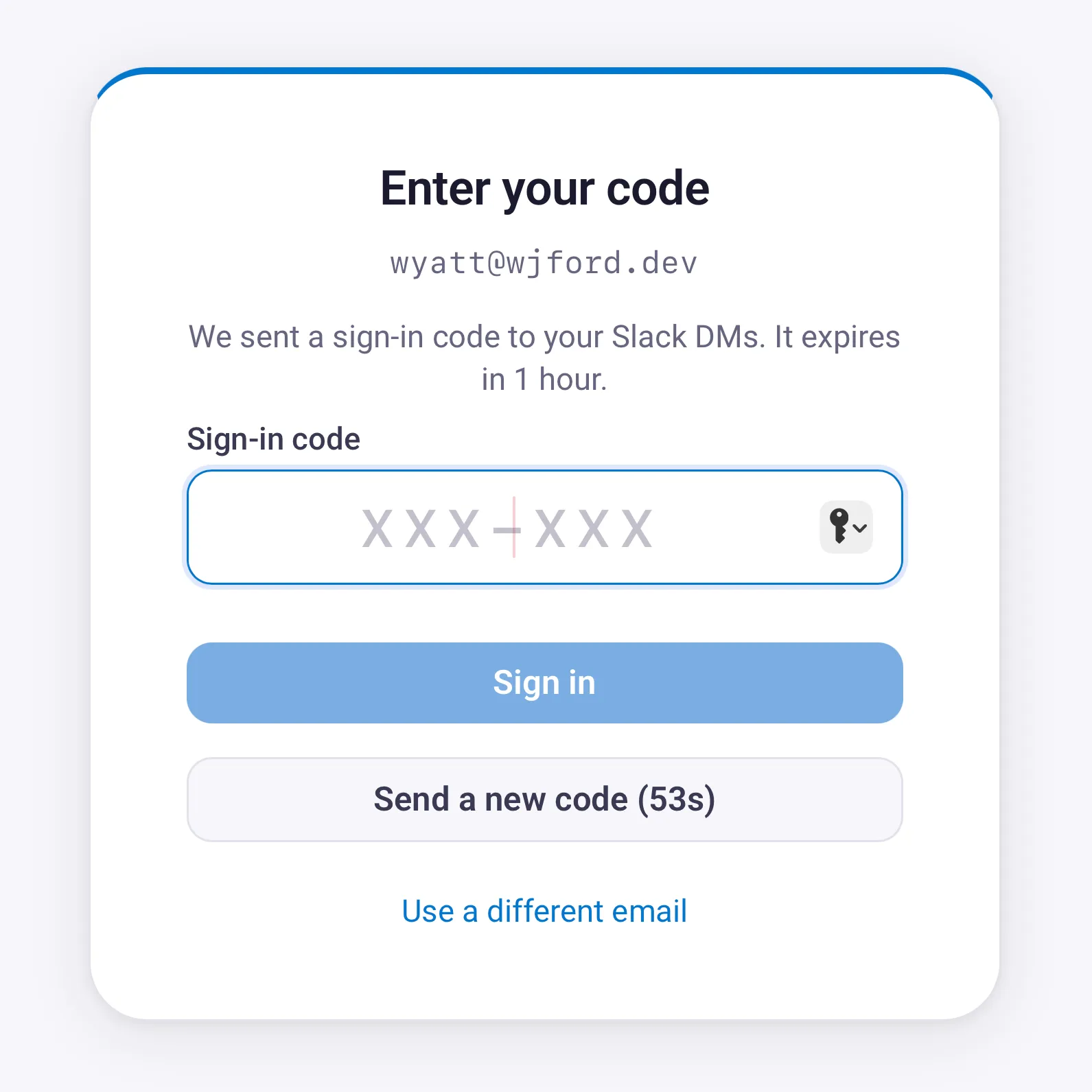
Enter your code
Section titled “Enter your code”The steps are the same for both routes.
- Open your direct messages in Slack and look for a message from Inventory Buddy.
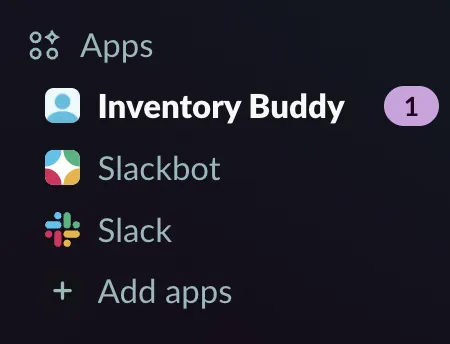
- Copy the code it sends you and enter it in the Sign-in code field.
- Click Sign in.