Starting a New Sale
Open a new sale
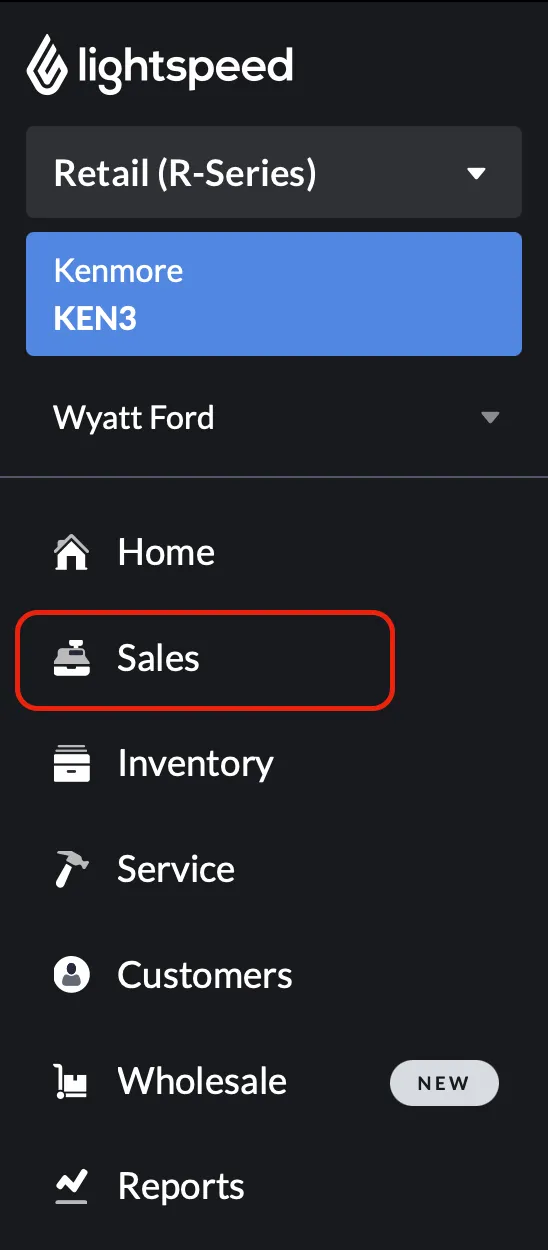
Section titled “Open a new sale”- If you’re not on the sale screen, click Sales in the Lightspeed sidebar.
-
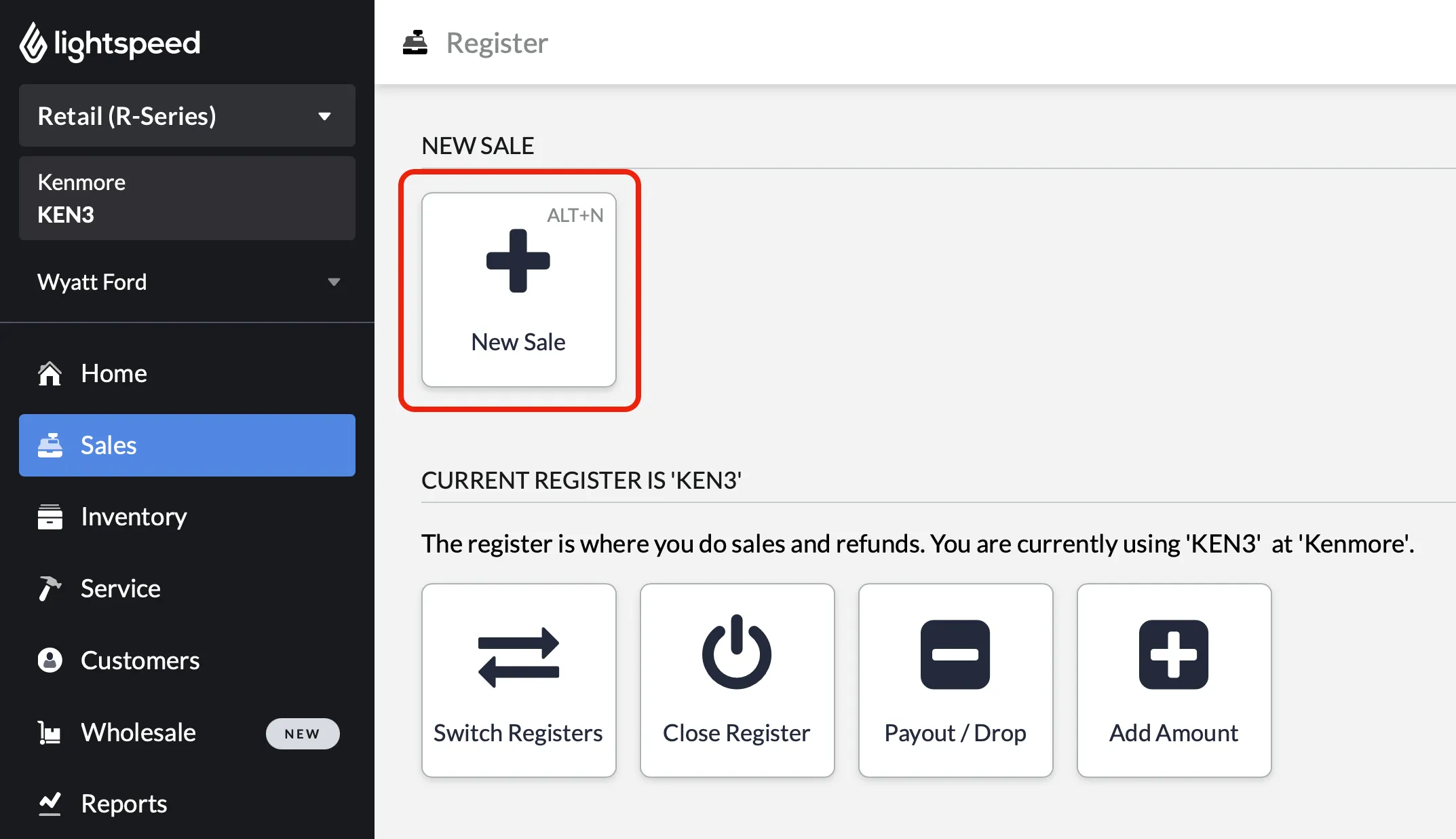
Click New Sale.
Add items
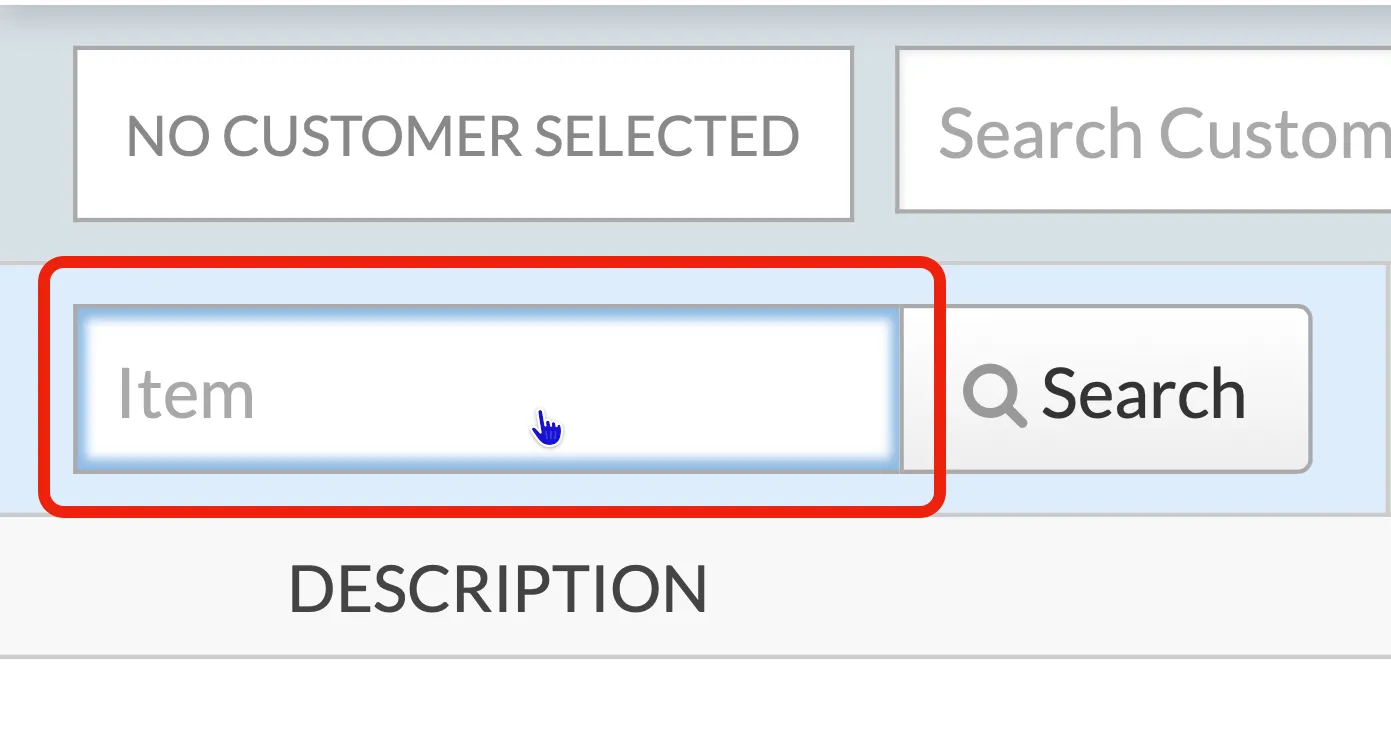
Section titled “Add items”- Make sure the Item input box is focused. Click the box if you’re unsure.
-
Scan the item. The Snapdoodle sticker is usually on the back of the item, in the upper right corner.
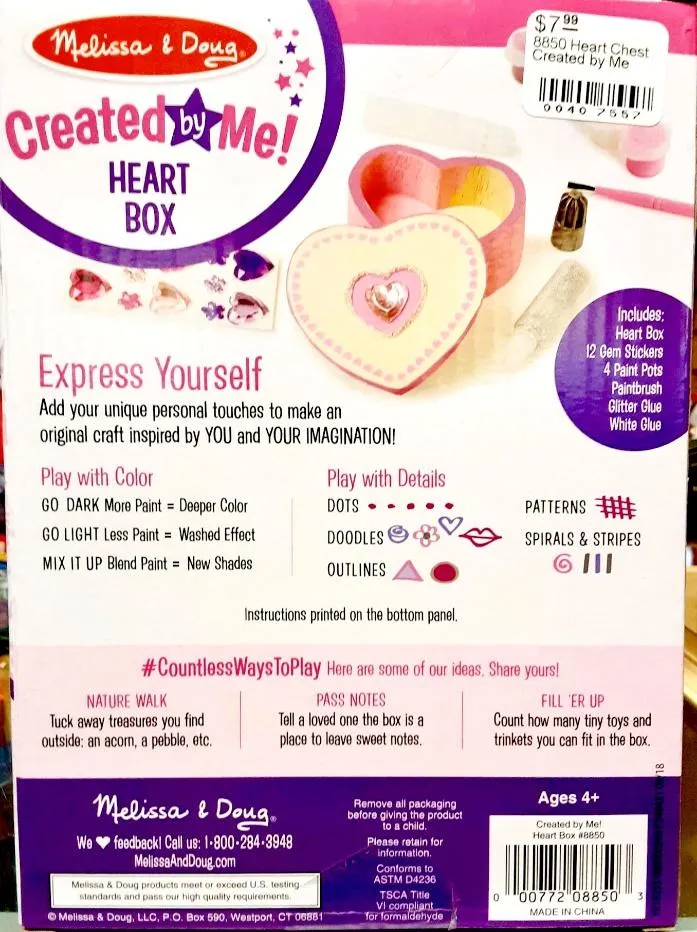
- If you can’t find the Snapdoodle sticker, try scanning any other barcode on the product.
- If that doesn’t work, type what the name might be. For example, “Heart Box” wouldn’t work for the item in the photo above, but “Created by Me” would. You can also type part of the barcode, such as
8850. - For more help, see Looking Up an Item.
-
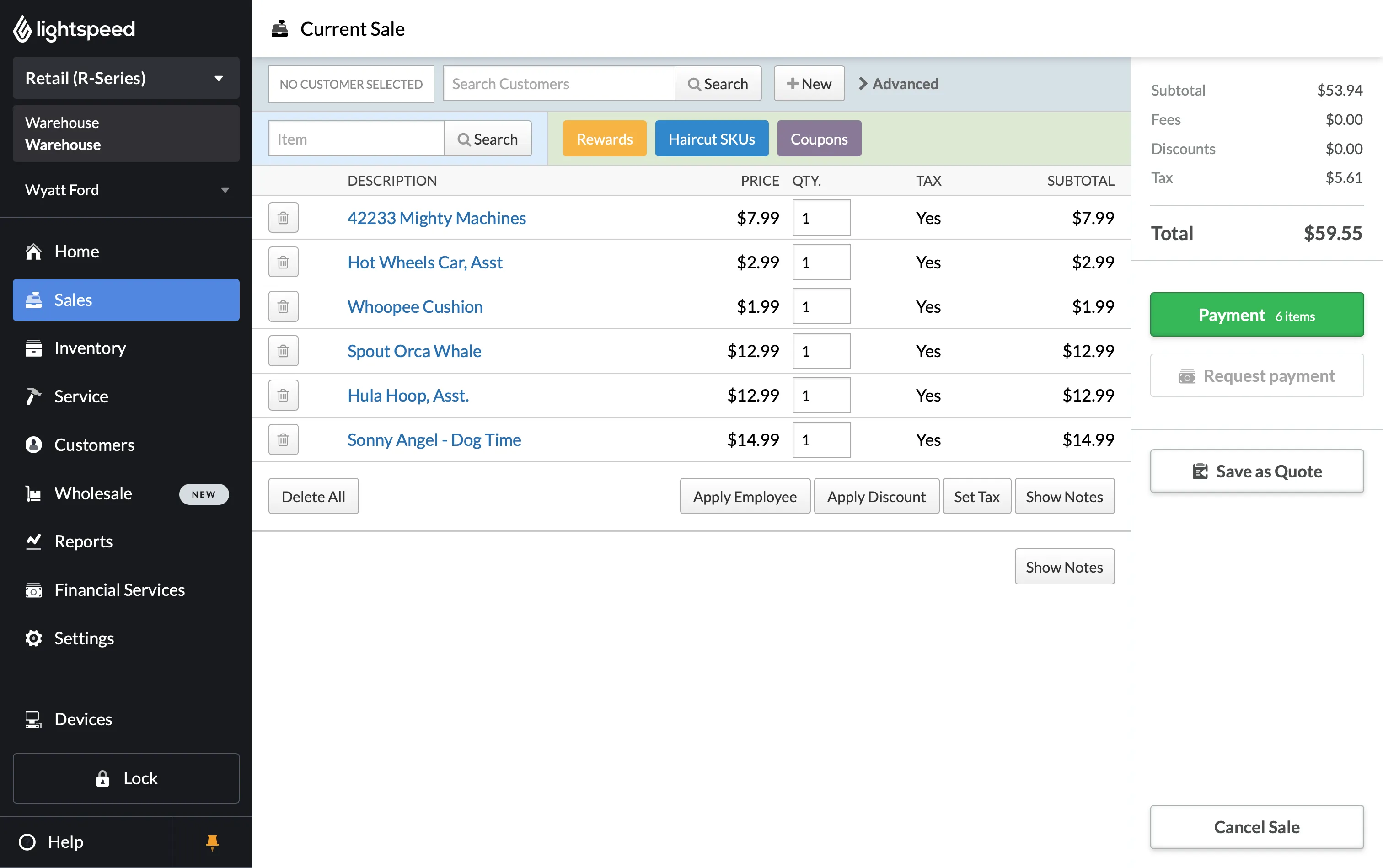
Finish adding all the items. Double-check that everything scanned correctly and that nothing was scanned twice.
Attach the customer
Section titled “Attach the customer”-
Ask the customer if they have an account with us.
-
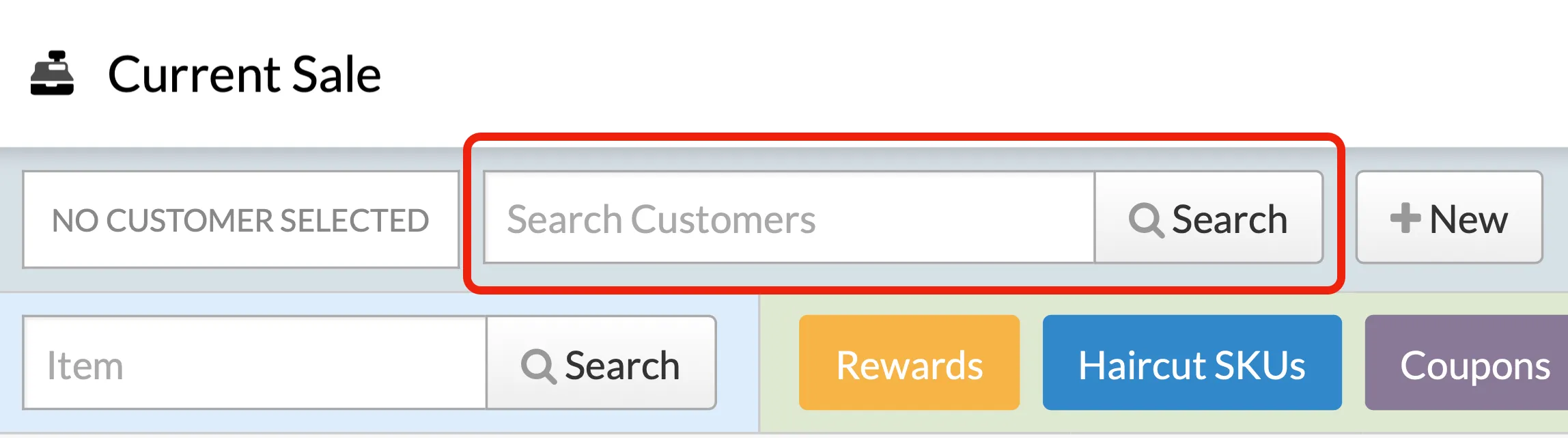
If yes, ask for their phone number. Enter it in the Search Customers bar at the top and click Search.
- If the phone number doesn’t work, try another number or their last name.
- You don’t need the whole last name. A few letters (3+) of the first and last name work too. For Ethan Pickering, “Eth Pick” should bring him up.
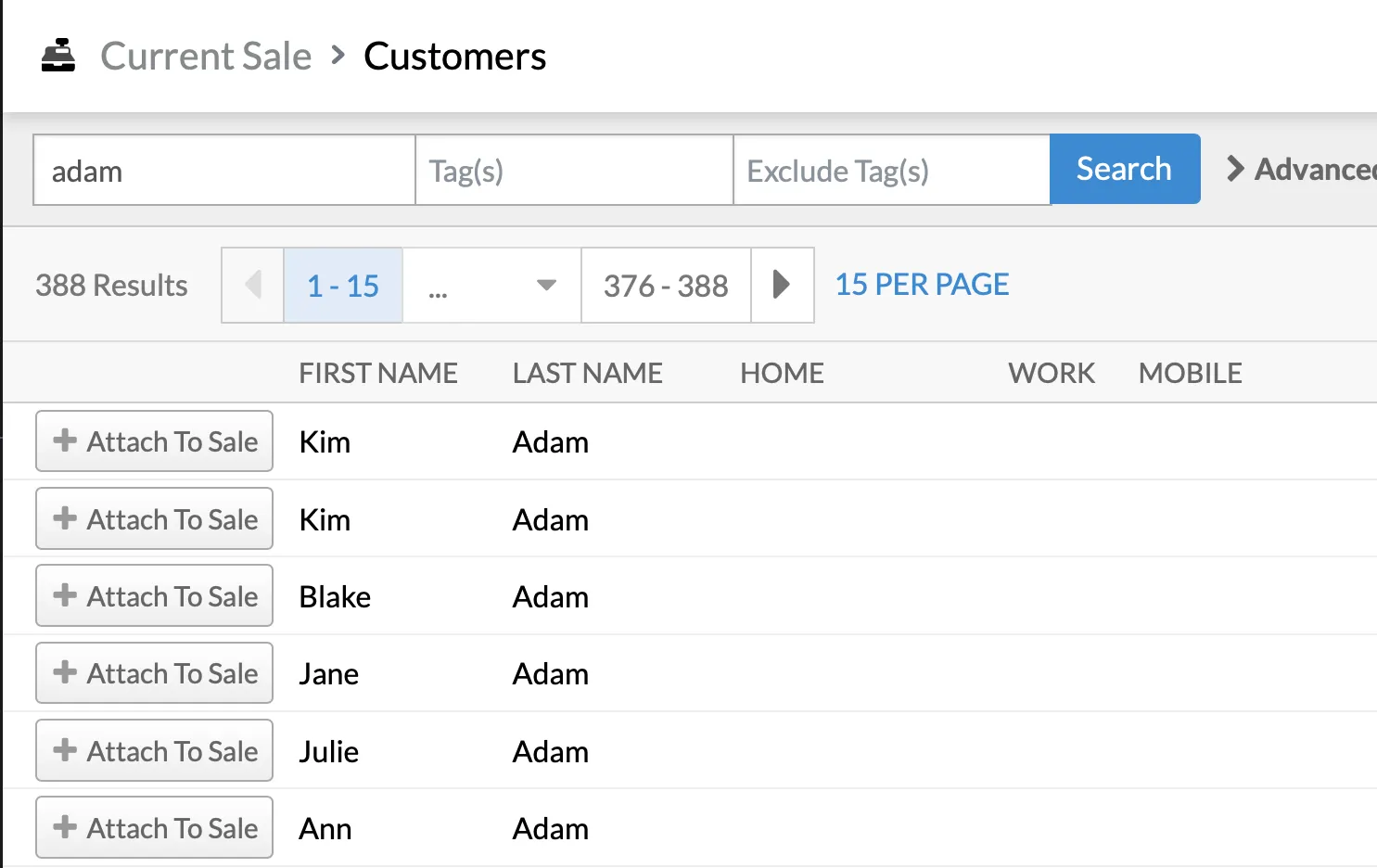
- If the search has one match, the customer attaches to the sale automatically. If there are several, click + Attach to Sale next to the right one.
- If you can’t find them, see Finding a Customer Account.
-
If no, ask if they’d like to join.
- To sign them up, see Creating a Customer Account.
- If they don’t want to join, skip to Take payment.
-
Apply Rewards
Section titled “Apply Rewards”-
Check the customer’s Rewards account.
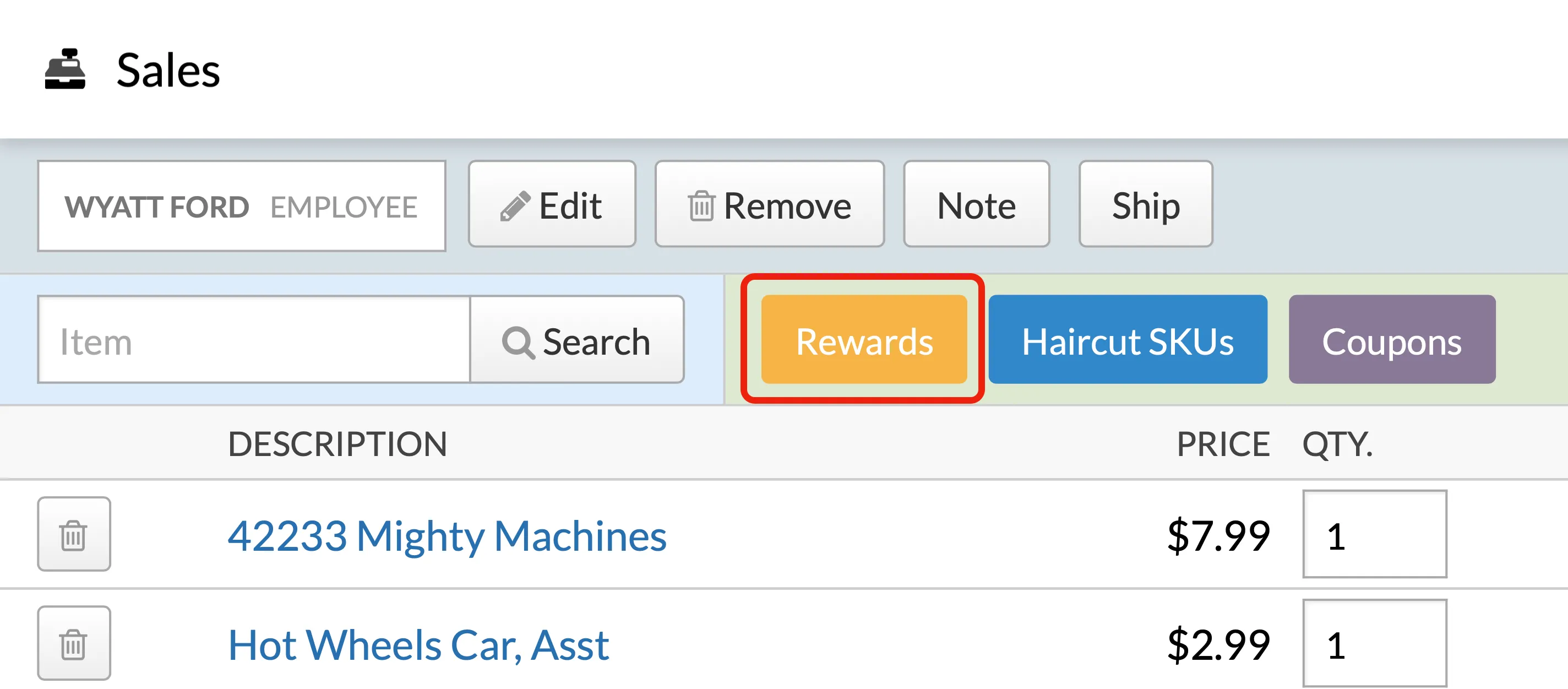
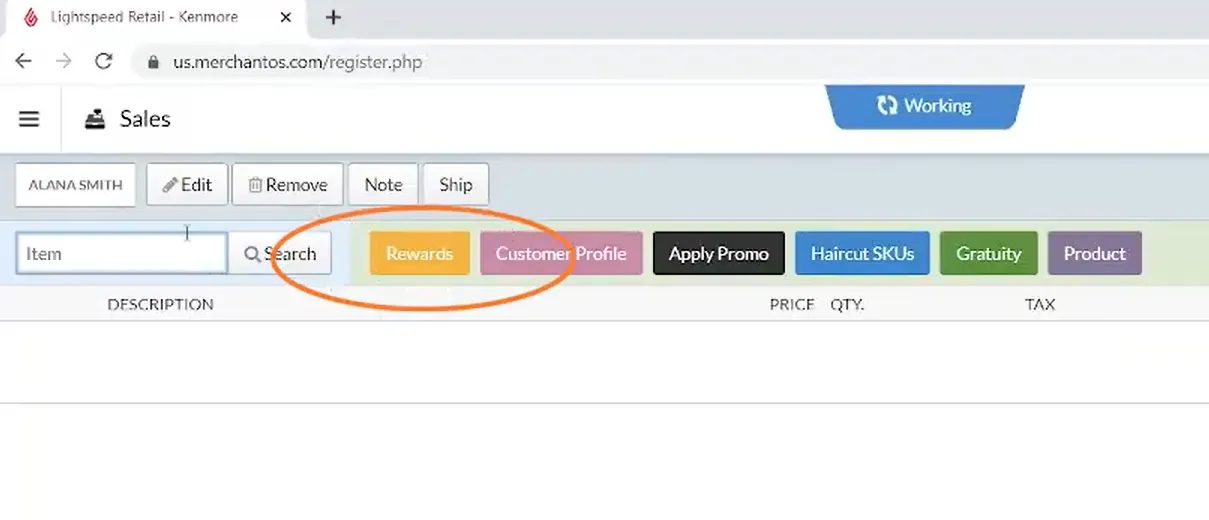
Click the Rewards button to check the customer’s point balance and apply rewards.
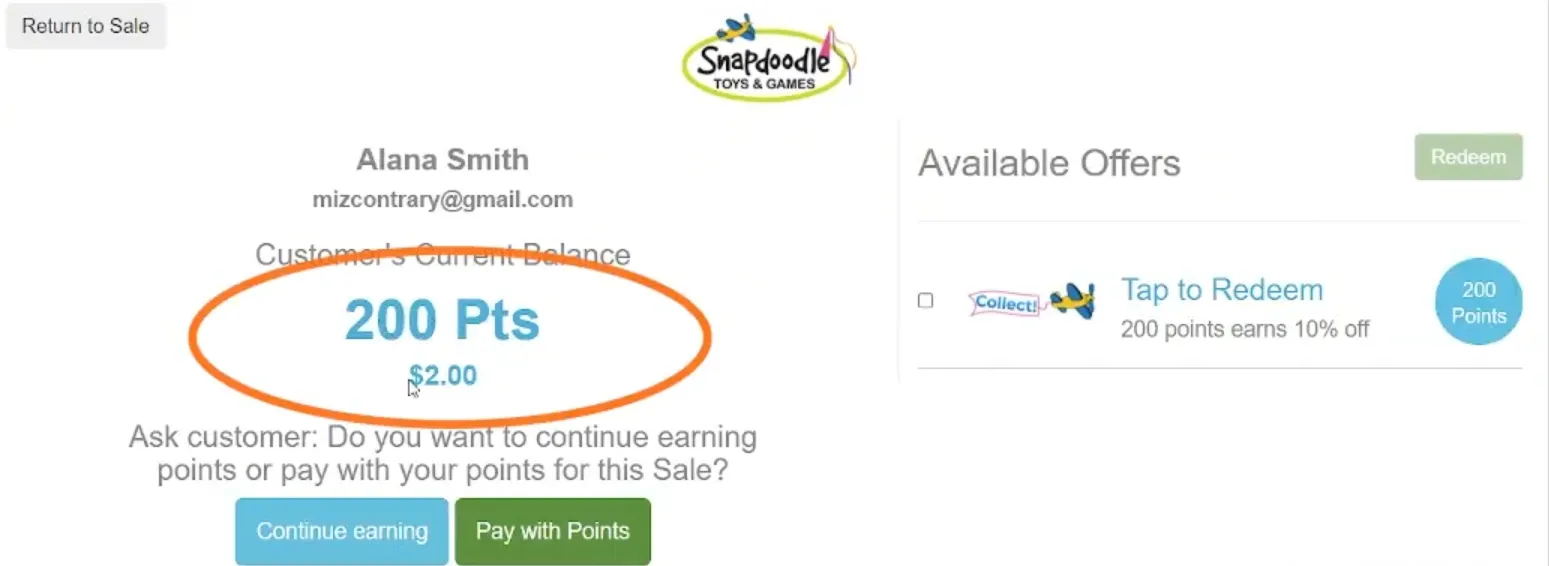
This screen shows their name, email, and point balance with its dollar equivalent. The customer can either use 200 points for 10% off the whole purchase, or use points to pay (each point is worth one penny). See Rewards Points for more.
-
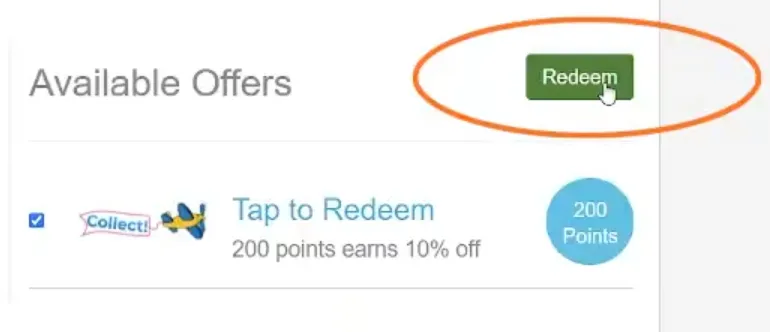
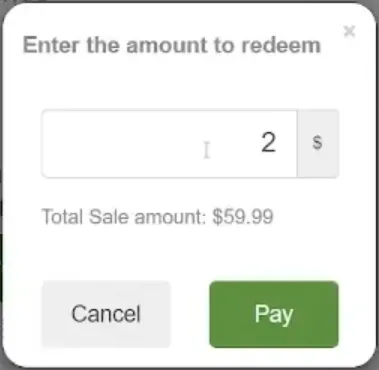
You have a few choices. Choose Return to Sale if the customer doesn’t want to use a reward, or Pay with Points to put points toward the payment. Most customers prefer the 10% off the whole purchase. To apply it, click the checkmark, then Redeem.
-
Back on the sale screen, each item should show the reward discount.
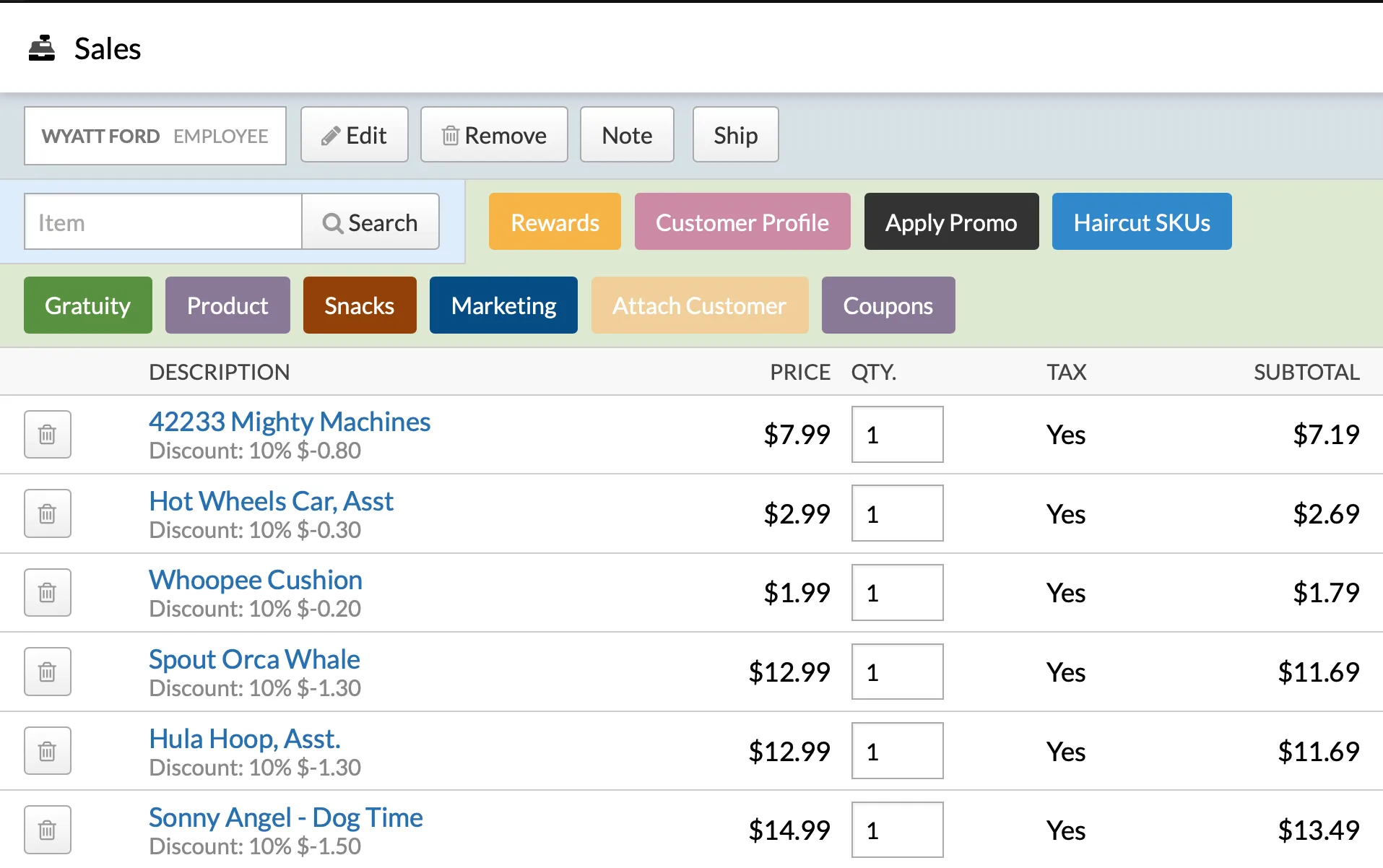
For coupons and other discounts, see Discounts.
Take payment
Section titled “Take payment”- Tell the customer the total, then follow the section below that matches how they’re paying. Most customers pay by card. If you can’t tell, look at what they’re holding: a card, cash, or a gift card.
Card (most common)
Section titled “Card (most common)”This covers credit cards, debit cards, and tap-to-pay (phone or watch).
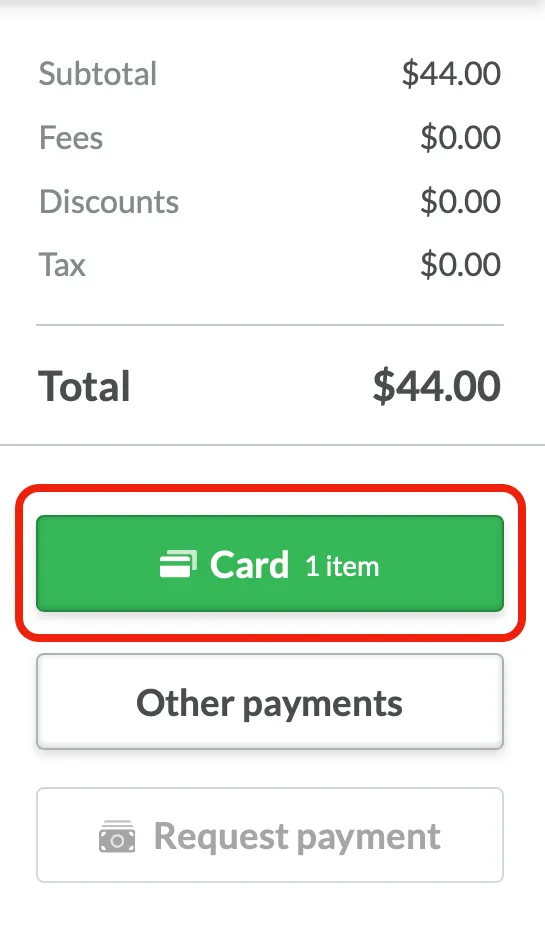
- Click the big green Card button, then click Start Payment.
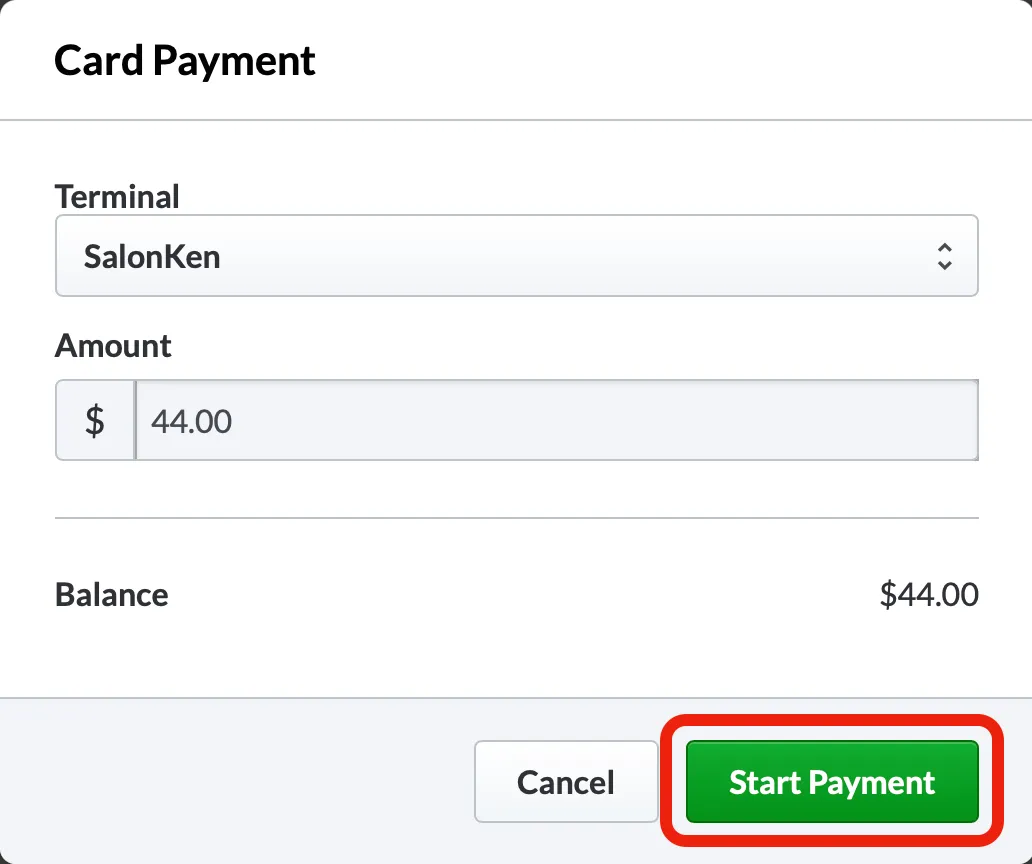
- The customer handles everything from here on their side. Wait for the screen to show the payment was approved.
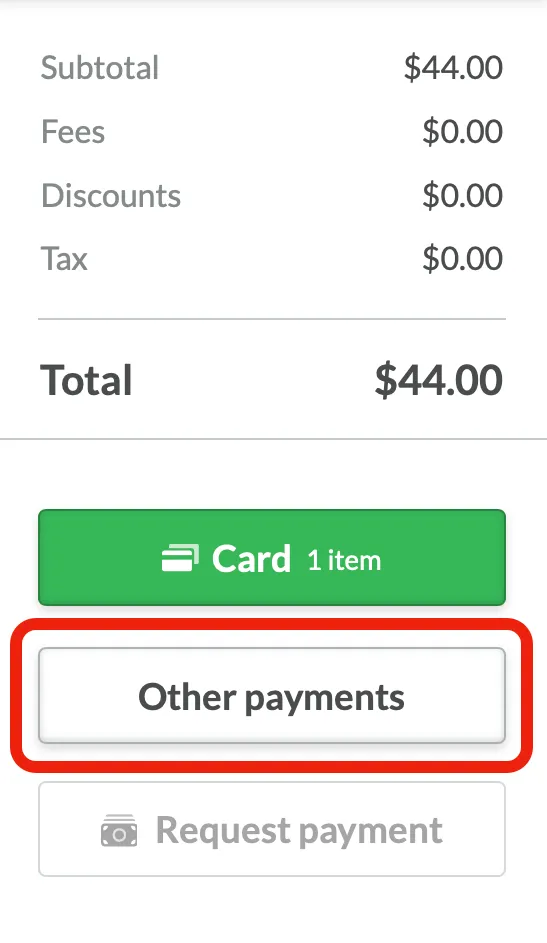
- Click Other payments.
-
Enter the amount from the customer in the field next to CASH. If the customer has exact change, click Max. For non-exact change, type in the amount they hand you, e.g.
100.00.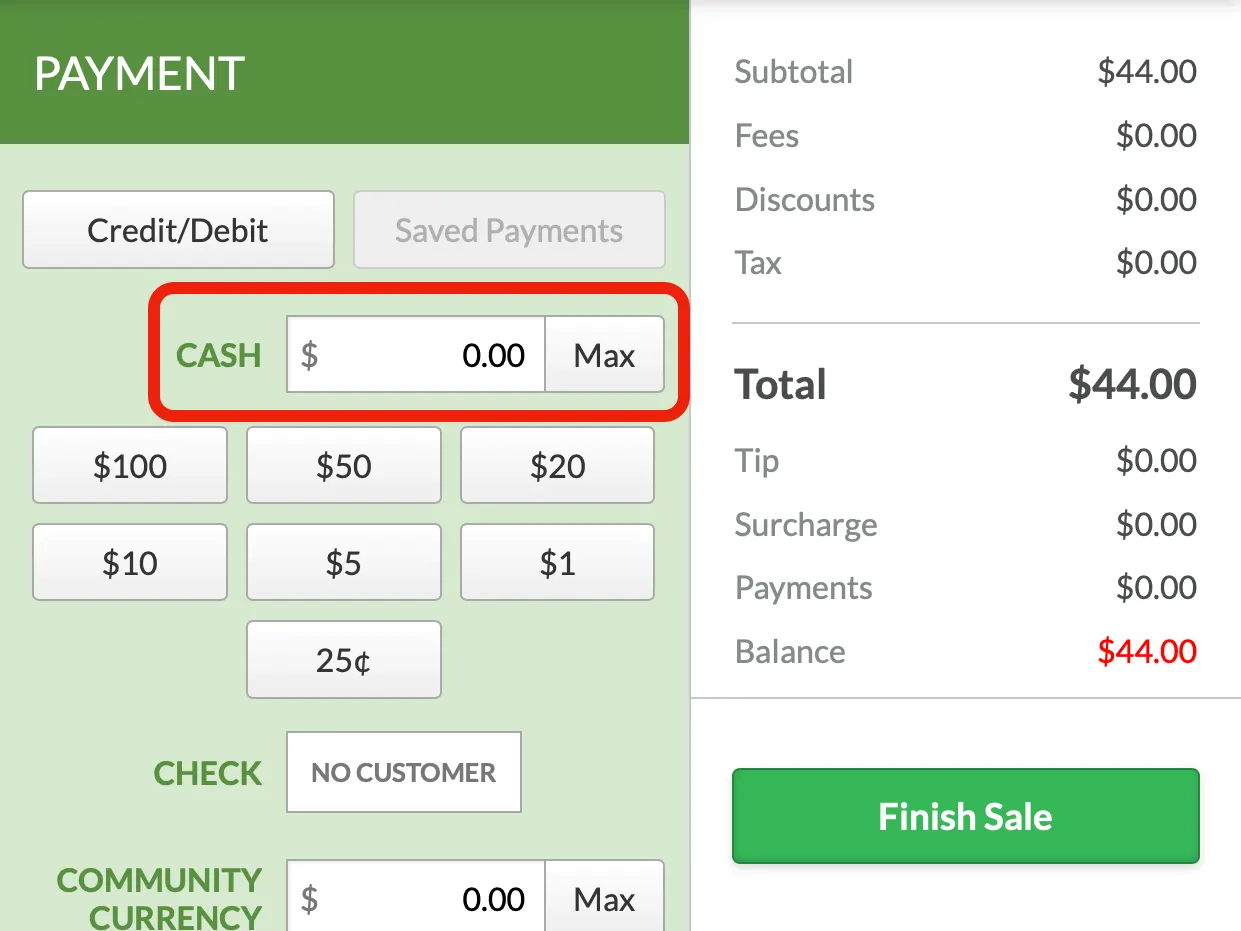
-
Click Finish Sale, then print a receipt to open the cash drawer.
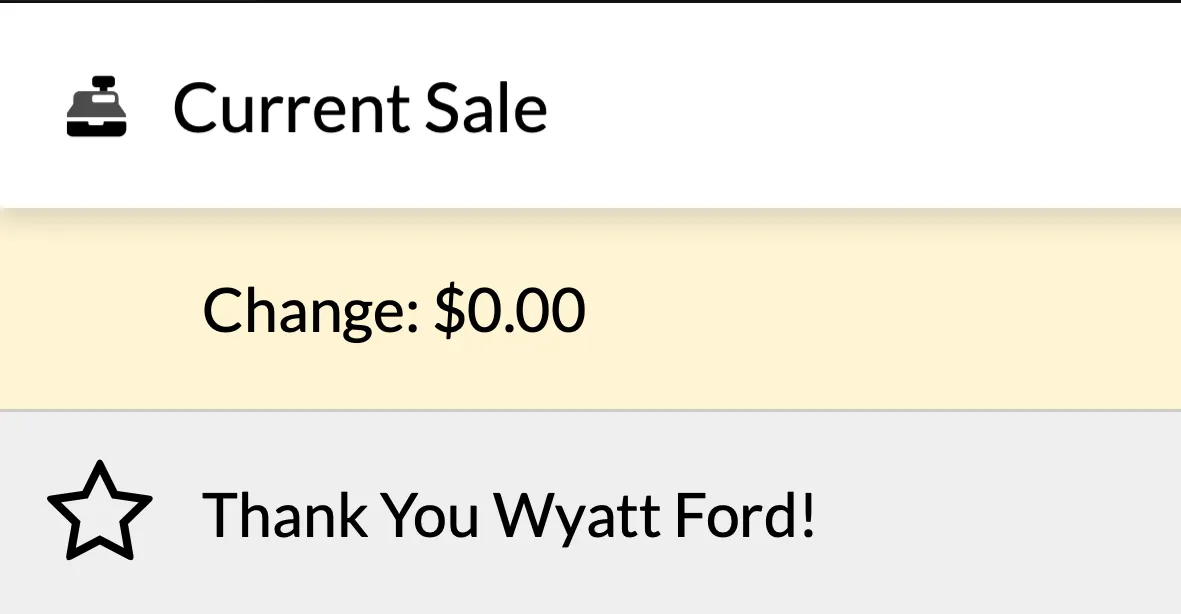
- Give the customer their change. This will always display on the final sale page.
Gift card
Section titled “Gift card”Gift cards take extra steps on a second machine, so hold on to the card until the sale is done.
- If the customer doesn’t know the balance, look it up first. See Gift Cards.
- Click the Gift Card button and enter the gift card’s value, then click the total to update it.
- Check whether the gift card covers the whole sale:
- It covers everything: continue to Finish up.
- It doesn’t cover everything: see Paying with more than one method below.
- After you finish the sale and print the receipt, take the card to the Verifone to deduct the amount you entered. See Gift Cards.
Paying with more than one method
Section titled “Paying with more than one method”This happens most often when a gift card doesn’t cover the whole sale, or when a customer wants to pay part in cash and part by card.
-
Enter the first payment (for example, the gift card’s value, or the cash amount) and click the total to update it.
-
Tell the customer the remaining balance and ask how they’d like to cover it.
-
For the remaining balance:
- Card: click Max on the card line, then Start Payment, and let the customer finish on their side.
- Cash: type in the amount they hand you, including the decimal point and cents.
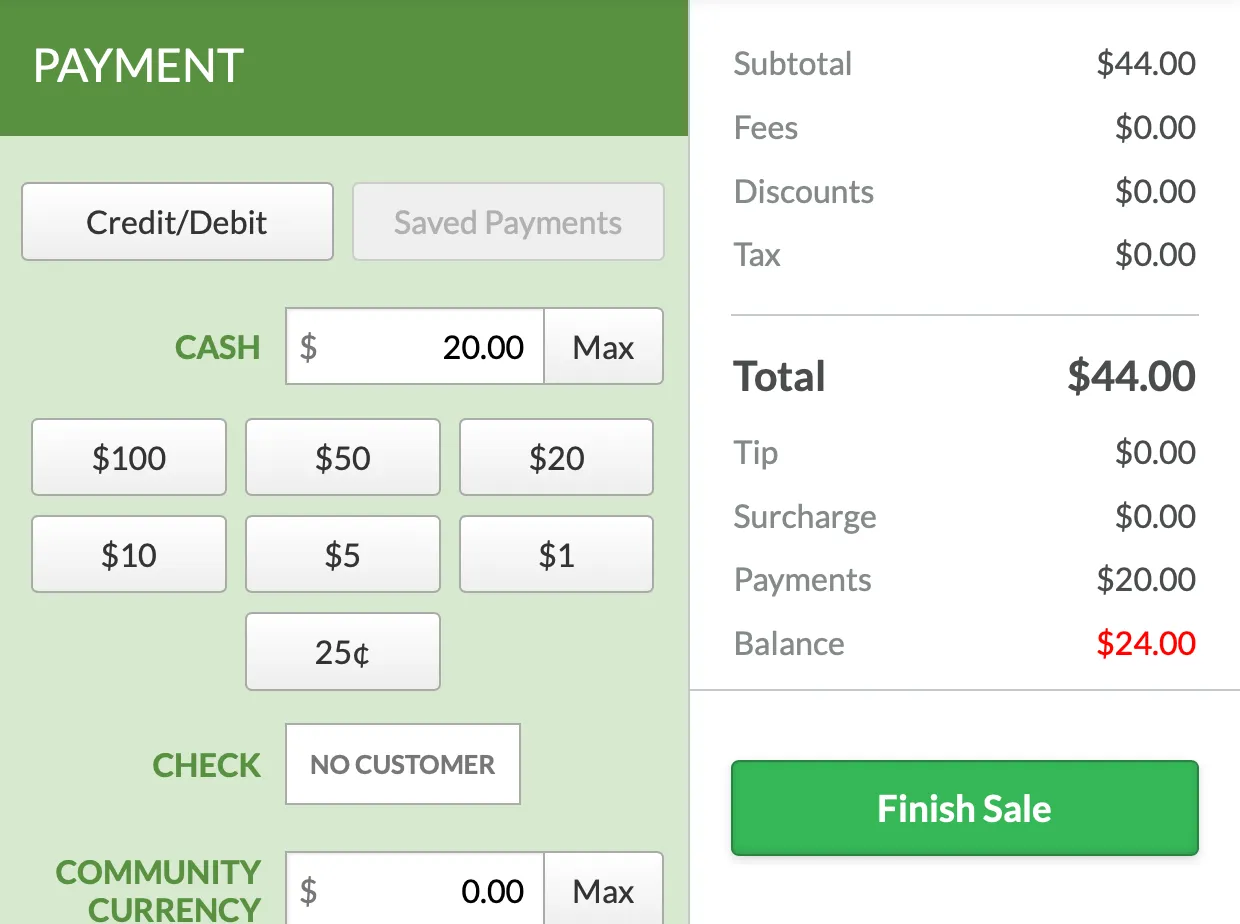
An example of paying with Cash and Card. -
When the balance reaches zero, continue to Finish up. If any part was paid by gift card, remember the Verifone step above.
Finish up
Section titled “Finish up”-
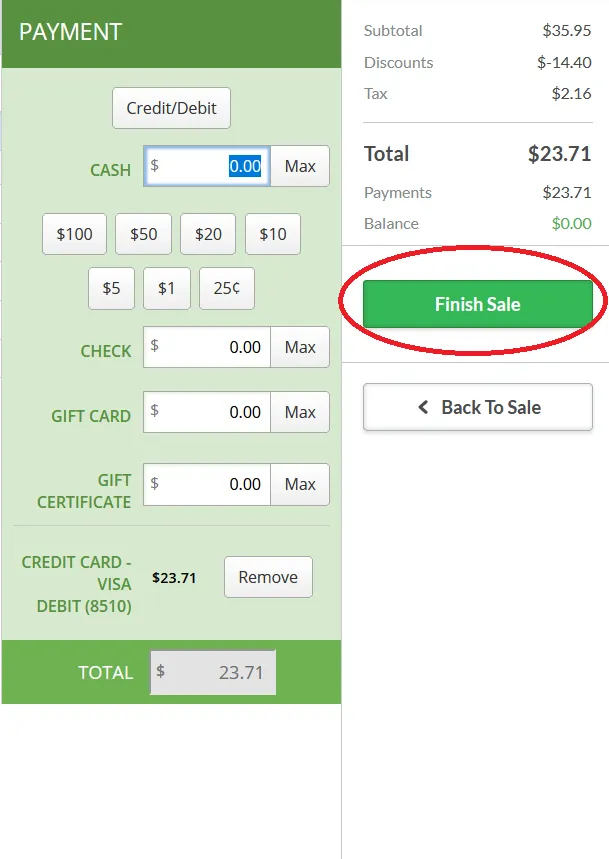
When the customer is done and all payments have been applied, click Finish Sale.
-
Ask the customer if they would like a Sales Receipt or Gift Receipt.
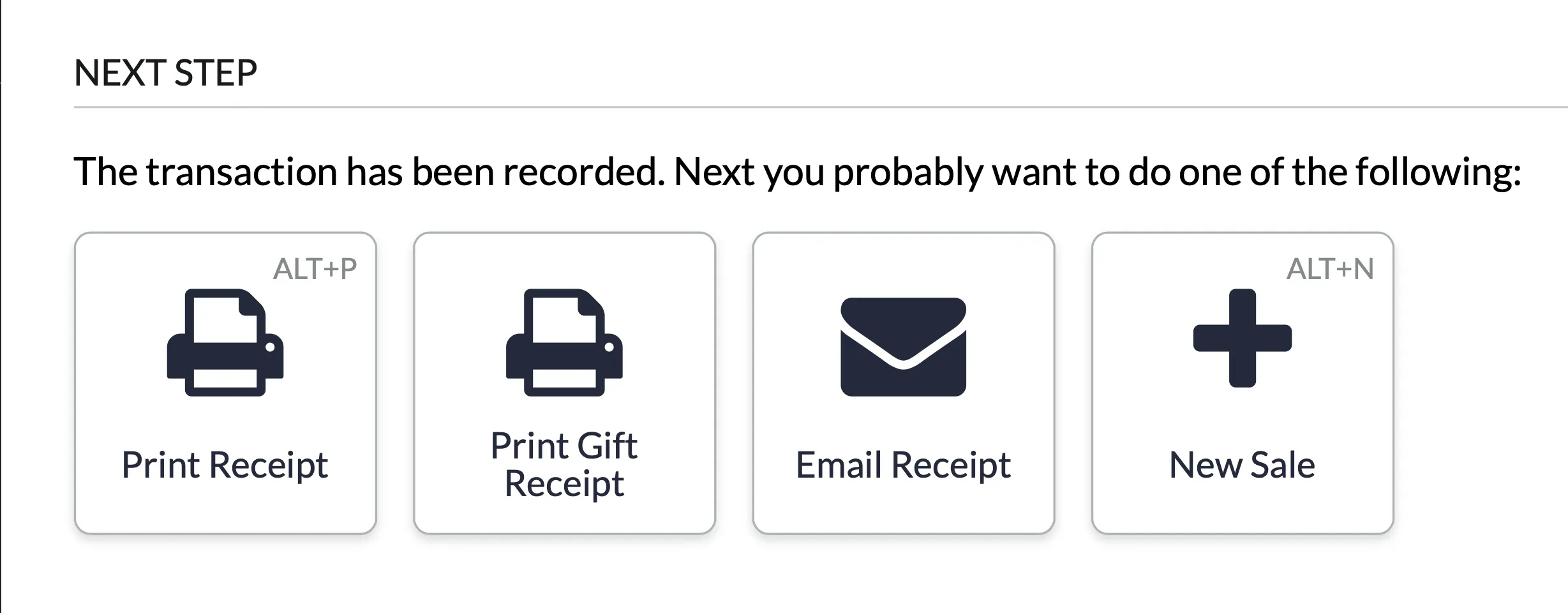
Click Print Receipt for a Sales Receipt, or Print Gift Receipt for a Gift Receipt.
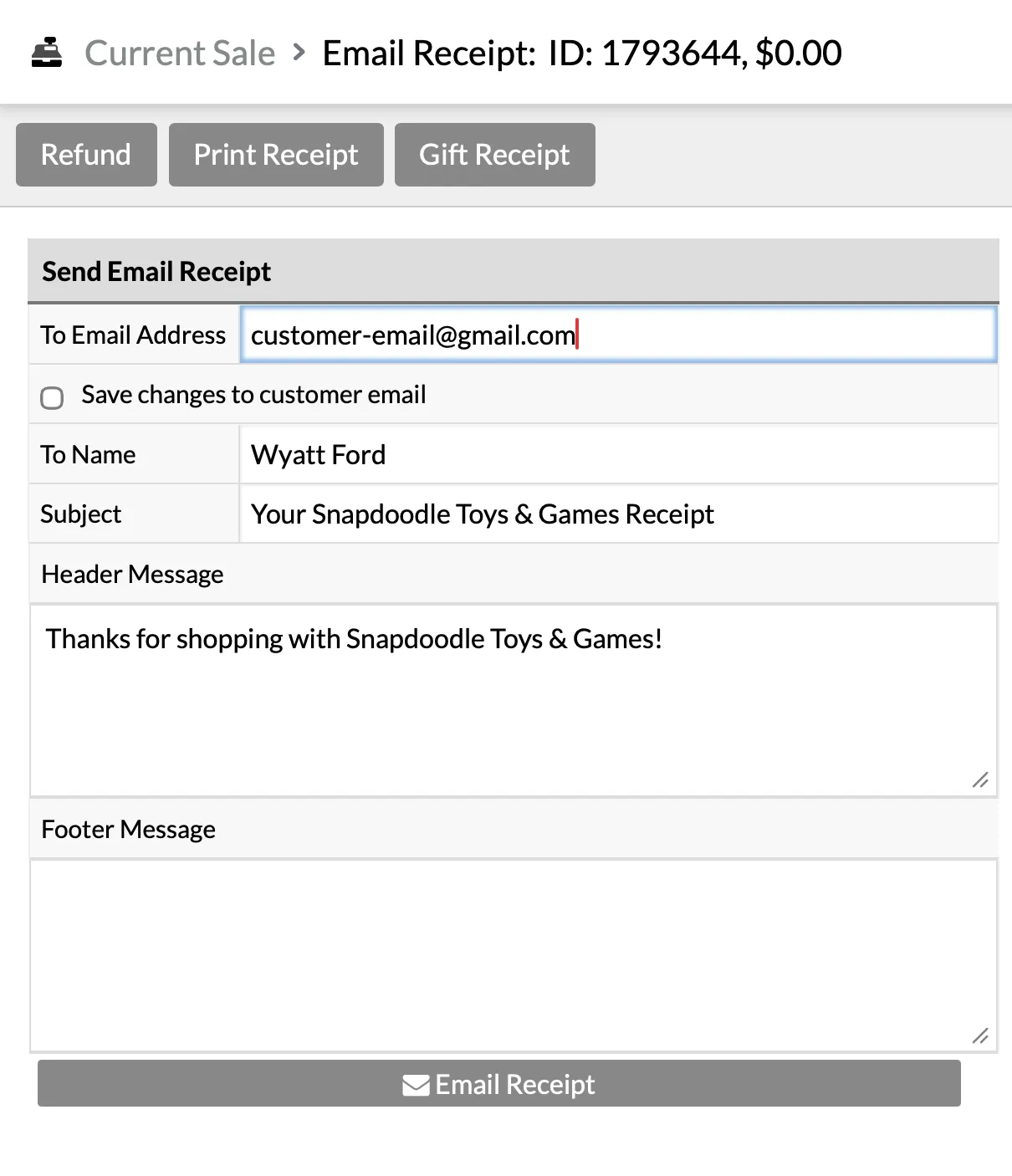
If the customer would like a receipt emailed to them, click Email Receipt. It will auto-fill the email from their rewards account (if one exists), or you will need to manually enter an email.
- Ask whether they’d like anything wrapped, or what they’re doing this weekend. You can chat while you ring up a purchase. Don’t be shy, talk to the customer!