Discounts
You might add a discount to an item or to a whole sale when:
- We’re having a special event, like an Anniversary, Summer, or Winter Celebration.
- The customer has a coupon.
- The item is on our clearance rack.
- The packaging is damaged.
Most discounts apply to a single item, unless the customer is redeeming a Rewards discount.
Which steps do I follow?
Section titled “Which steps do I follow?”- Discount for the whole sale (a Rewards discount): see Apply Rewards.
- Discount for only some items: see Discounting select items below.
- A Rewards discount and a coupon on the same sale: apply the whole-sale Rewards discount first, then add the item discount.
Discounting select items
Section titled “Discounting select items”When only some of the items in a purchase are discounted, handle each item one at a time.
-
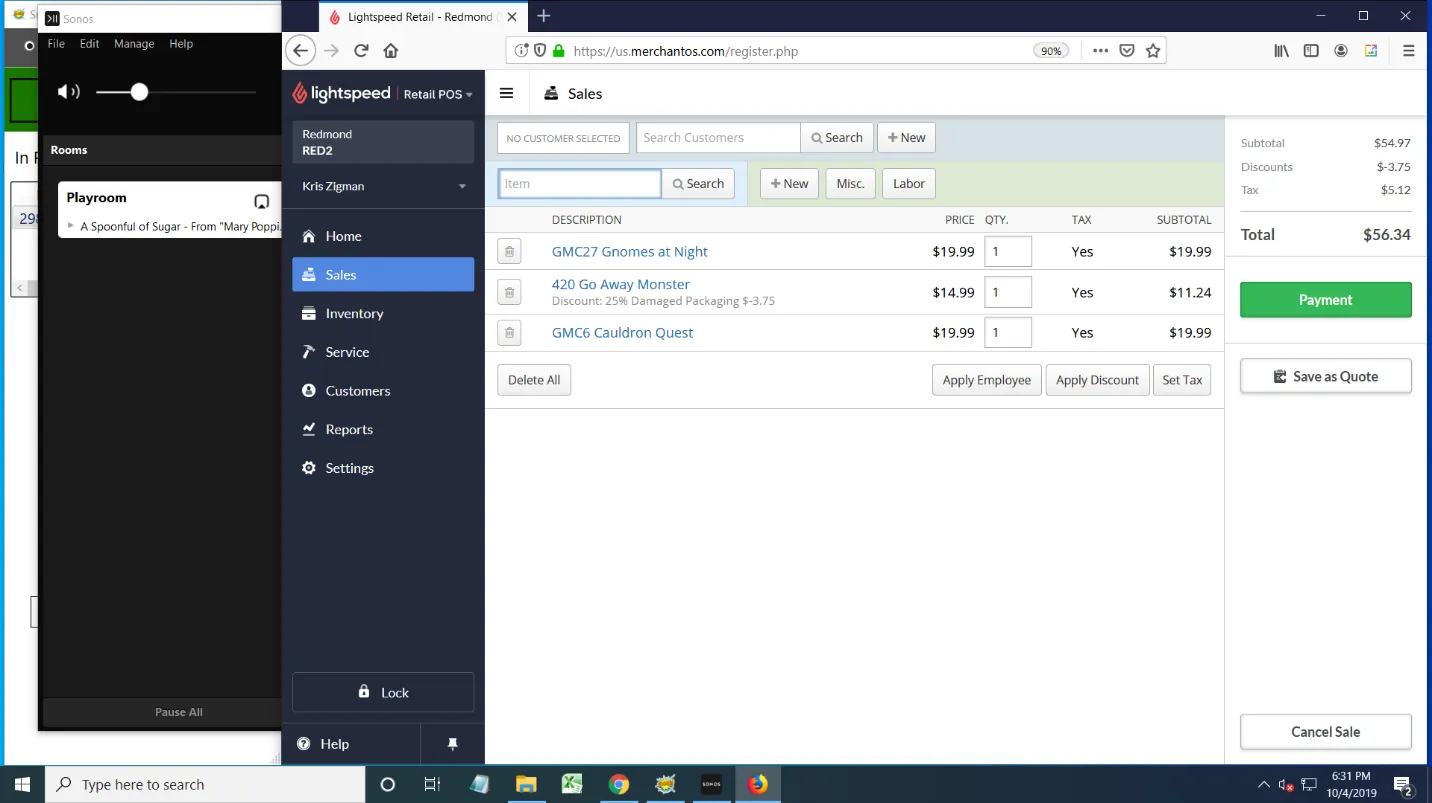
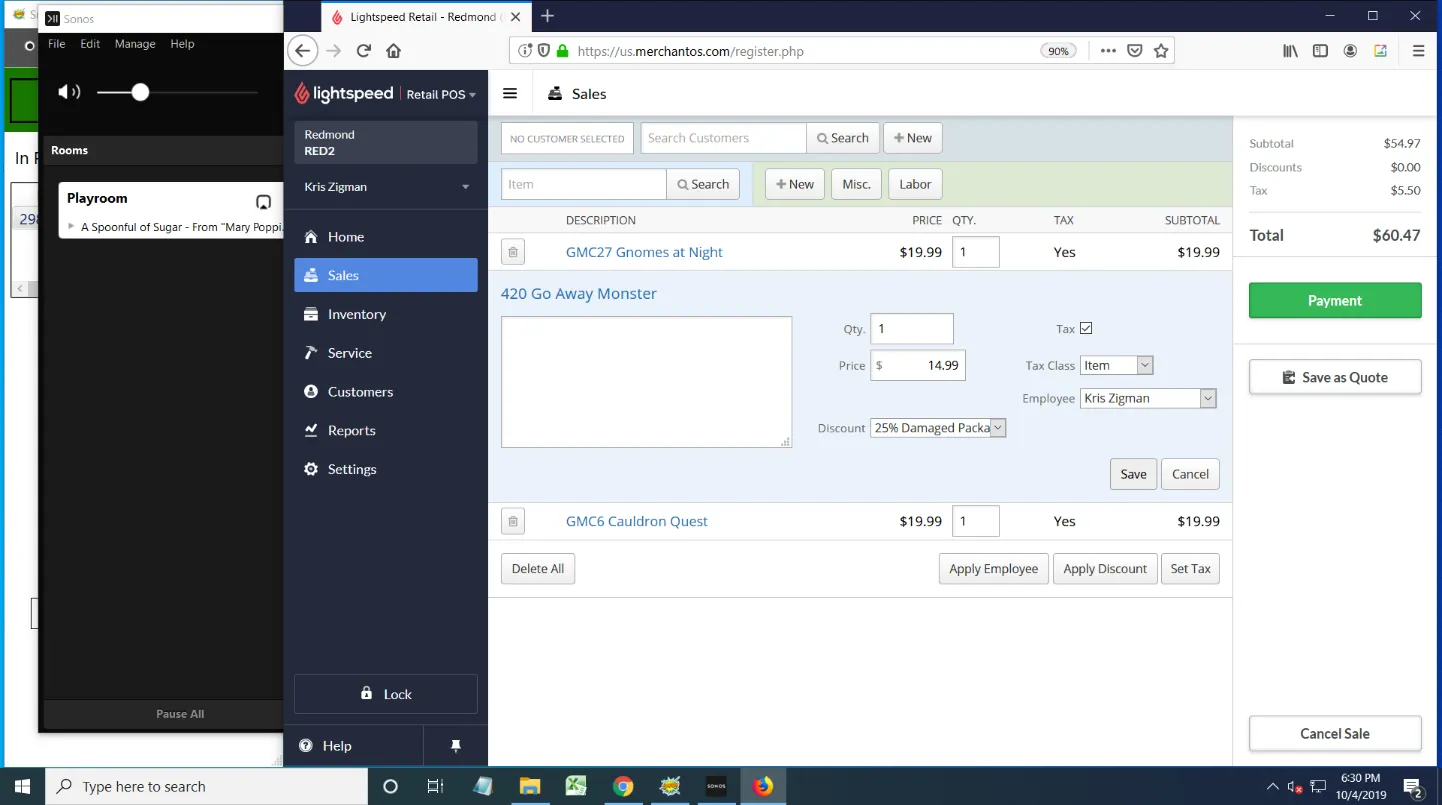
After you’ve entered the item, click it.
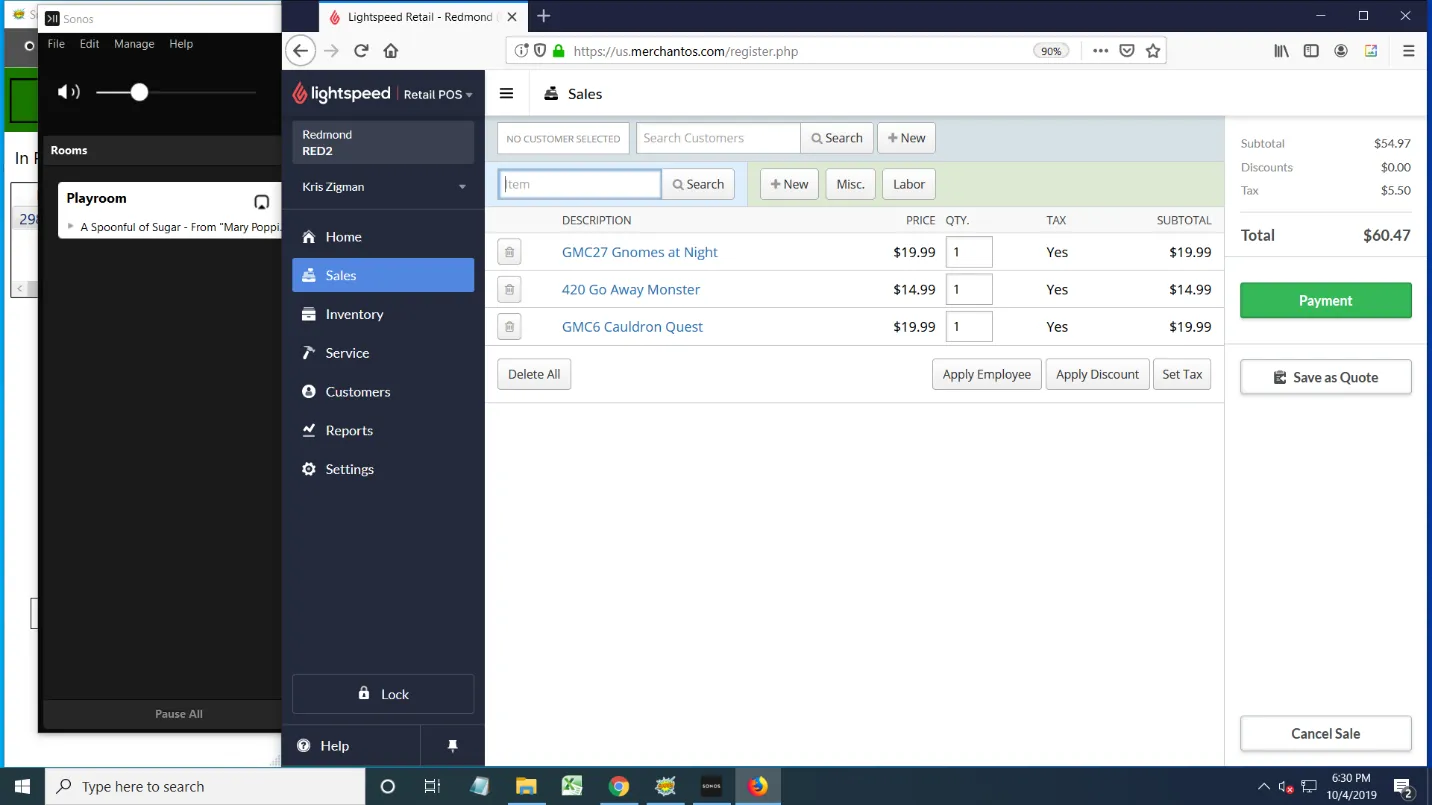
-
This screen lets you choose the discount. Open the discount drop-down menu.
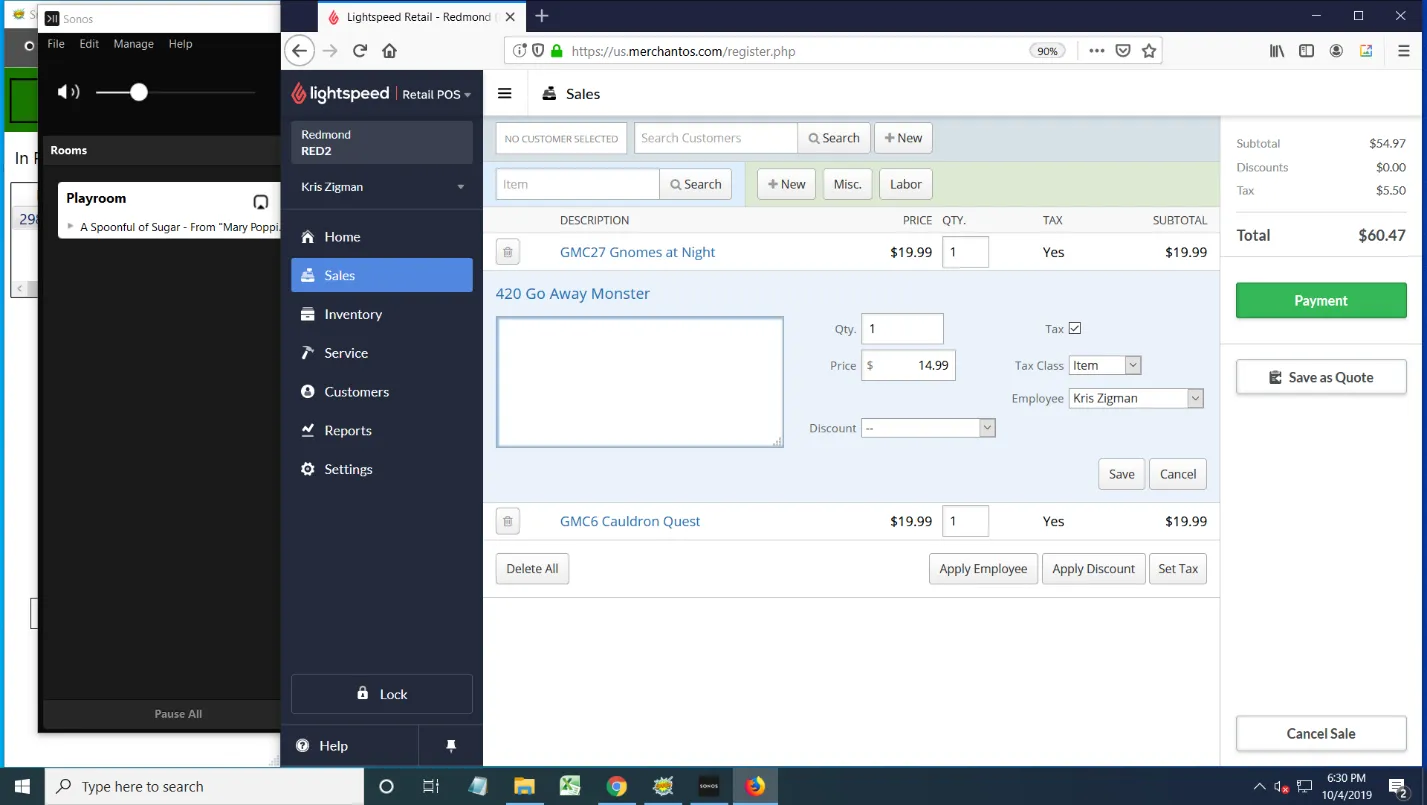
-
Pick the right discount. The most common are:
- 25%, from a coupon
- 25%, Damaged Packaging
- Any of the Clearance choices
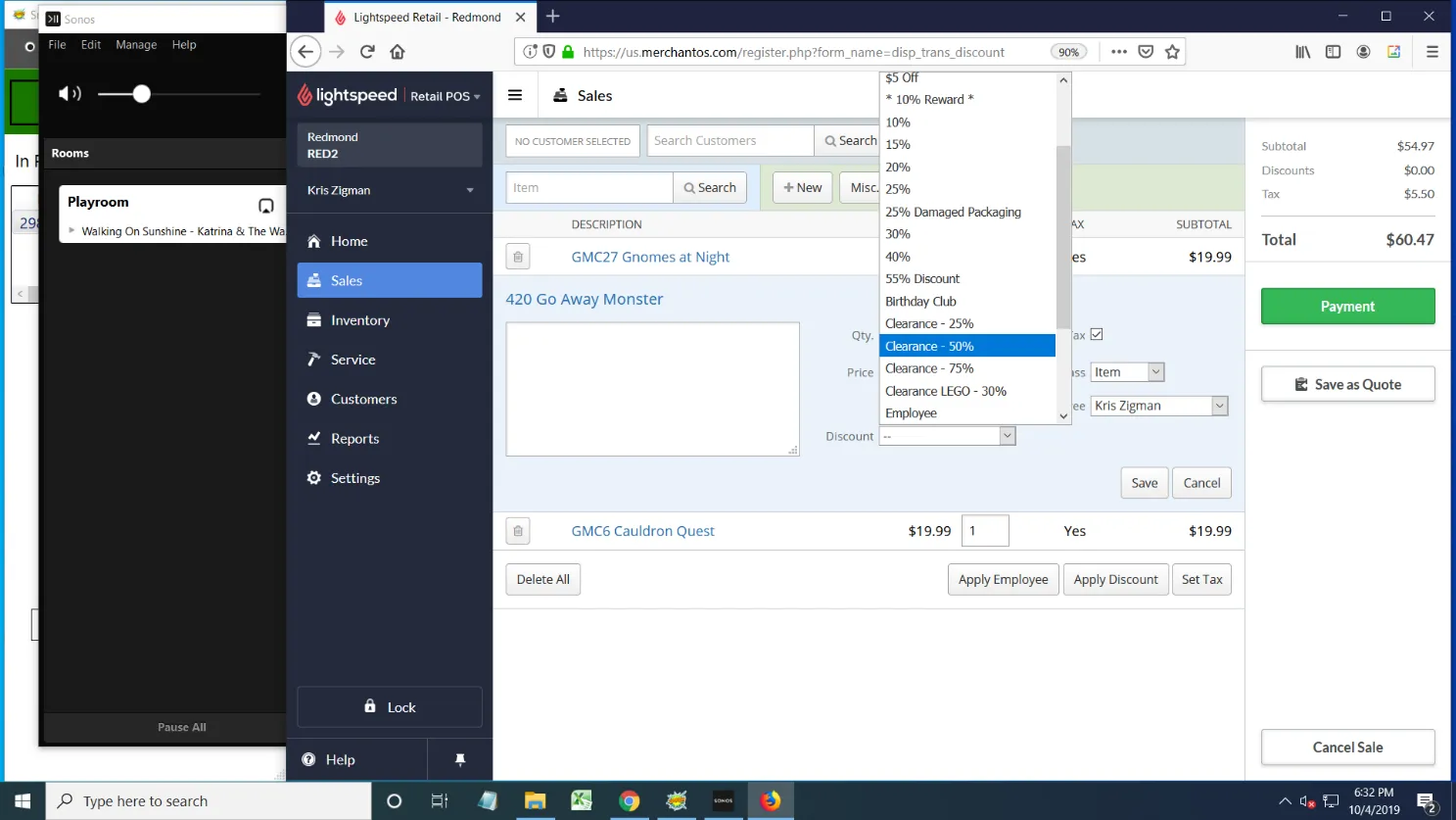
-
Click Save.
-
Check that the right discount is on the right item, then continue the sale as normal.